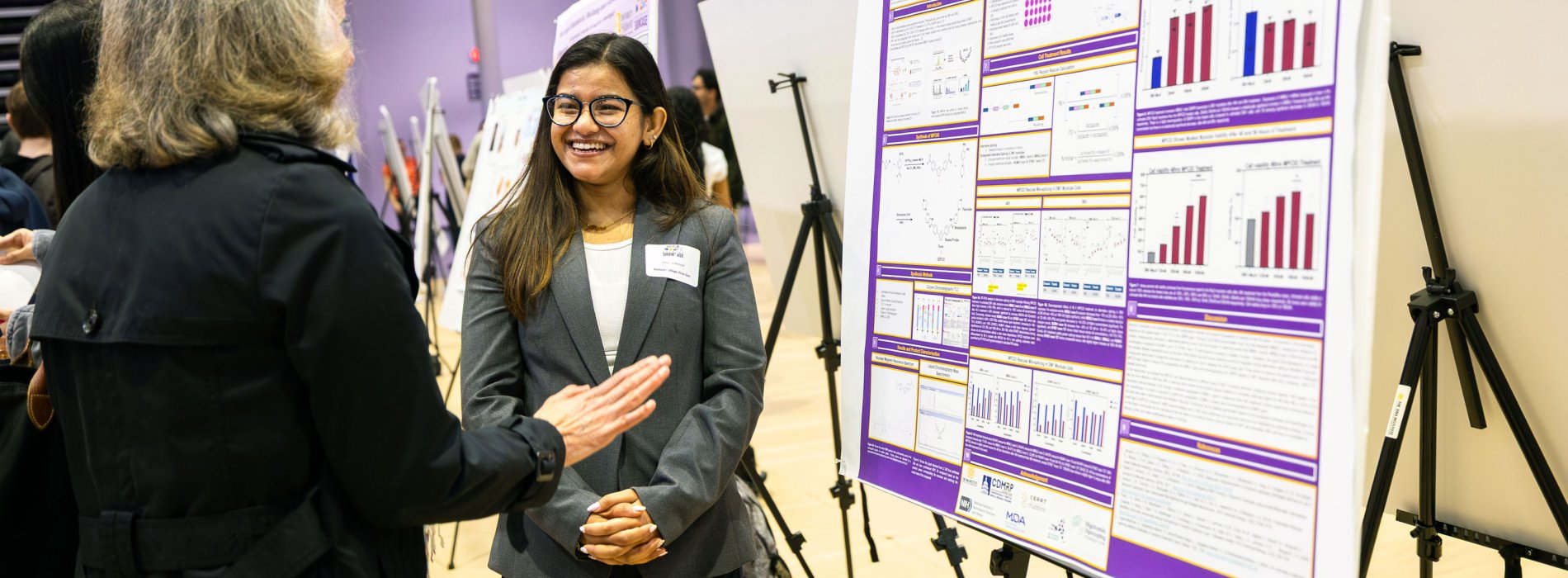
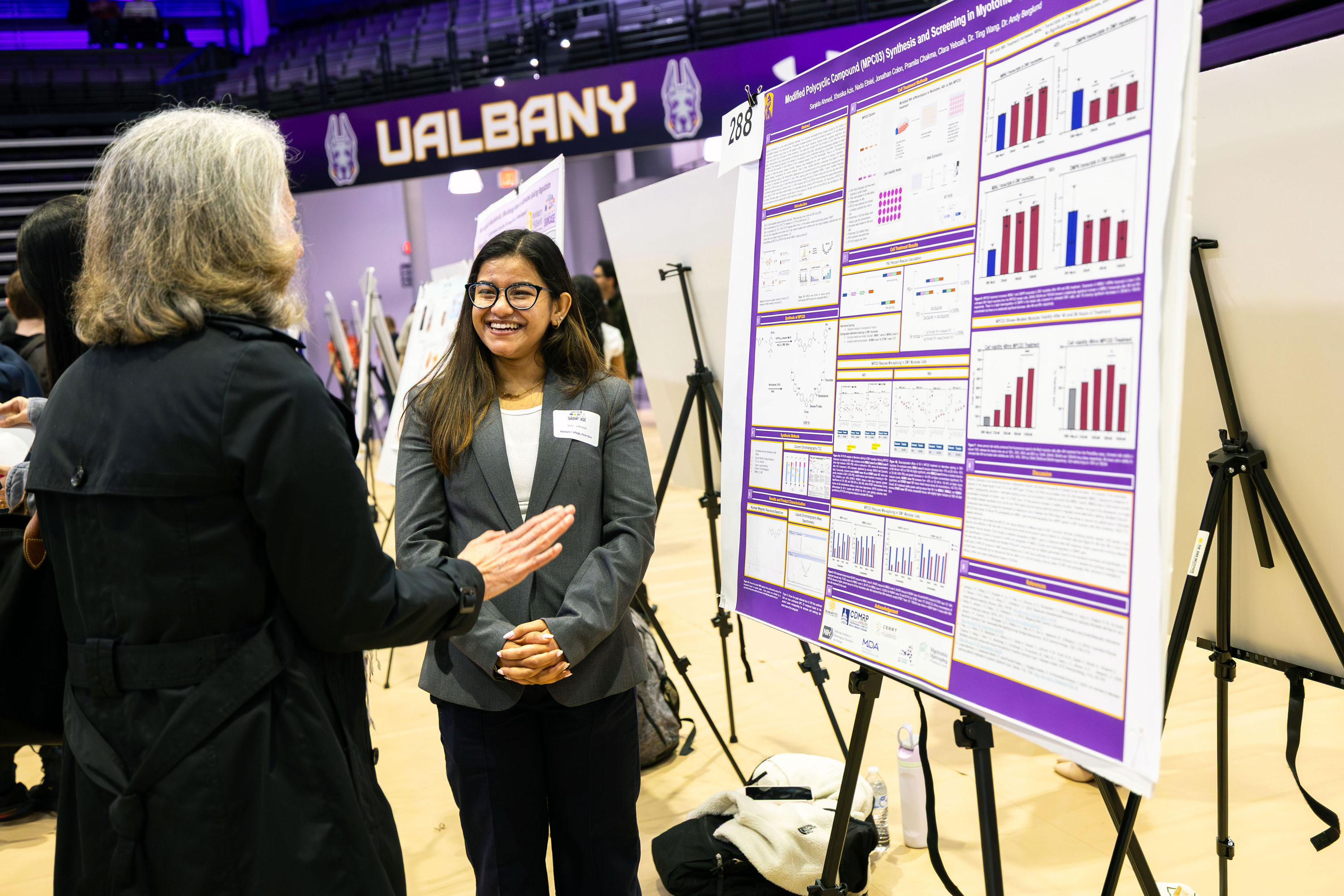



The University at Albany held its fourth annual Showcase Day, which celebrates academic excellence, on Thursday, April 30, 2026.
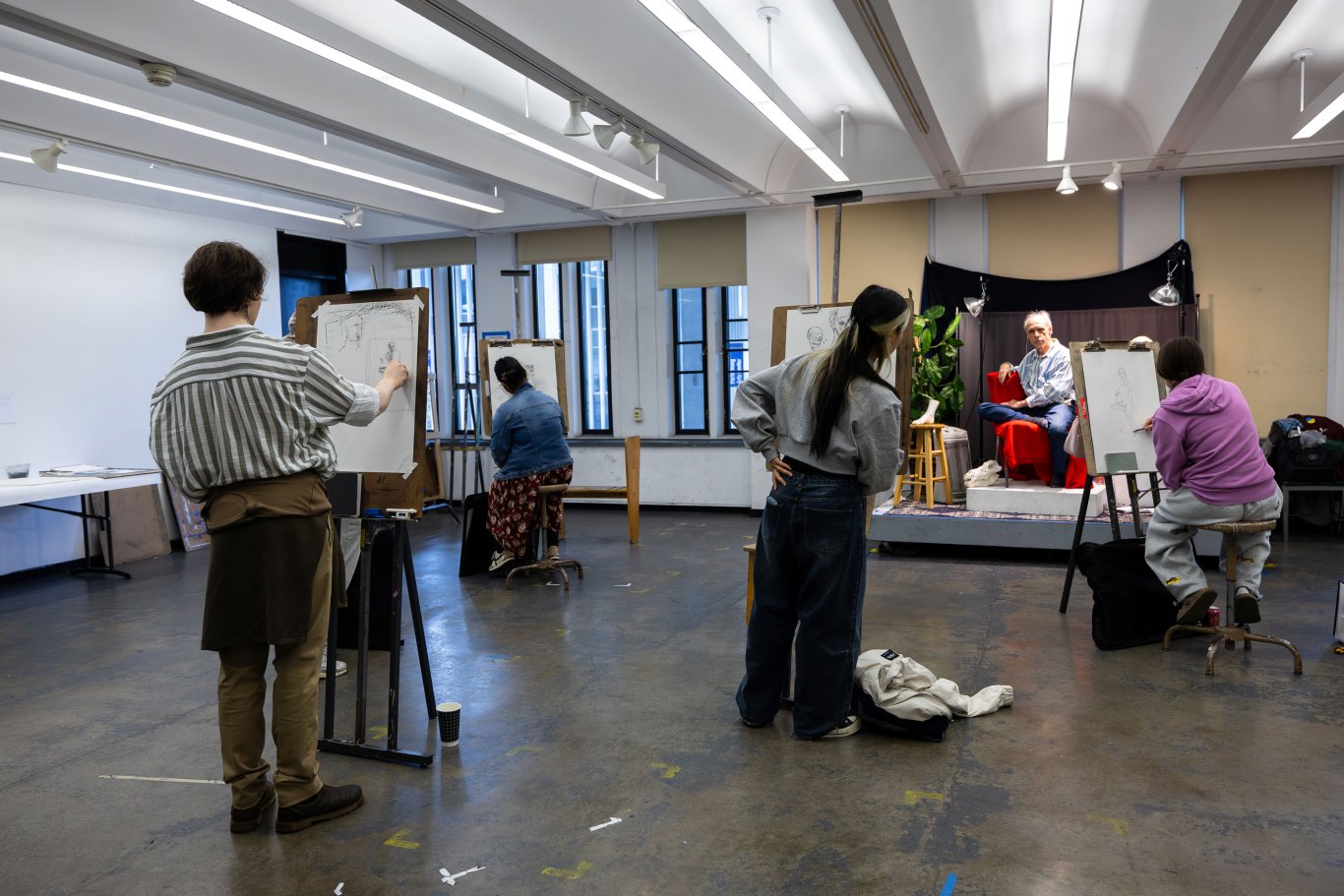
The day-long event featured poster fairs, performances, discussions, demonstrations and exhibitions that reflected new and original exploration of topics in STEM, arts and humanities, social sciences and the professions.
More than 2,600 students, supported by more than 400 faculty advisors, took part in over 1,700 presentations — sharing their research, academic work, experiential learning and creative activities with their peers, instructors and other attendees.
UAlbany students, faculty and staff, as well as prospective students, donors, sponsors, legislators, community leaders, institutional partners, and more than 200 middle and high school students from nine schools all attended Showcase.
We hope to see you next year on Wednesday, April 28, 2027, for Showcase 2027. Save the date!
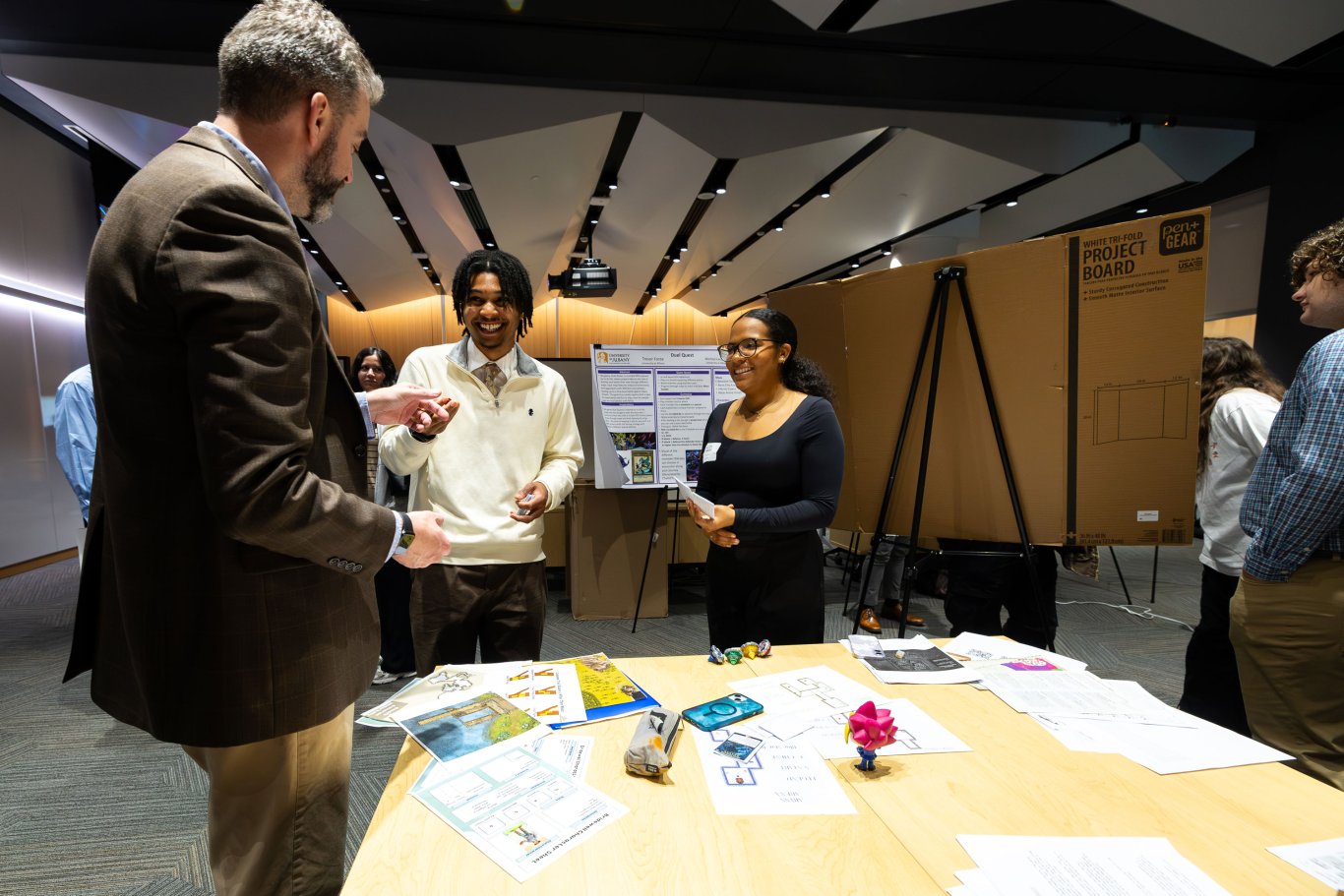
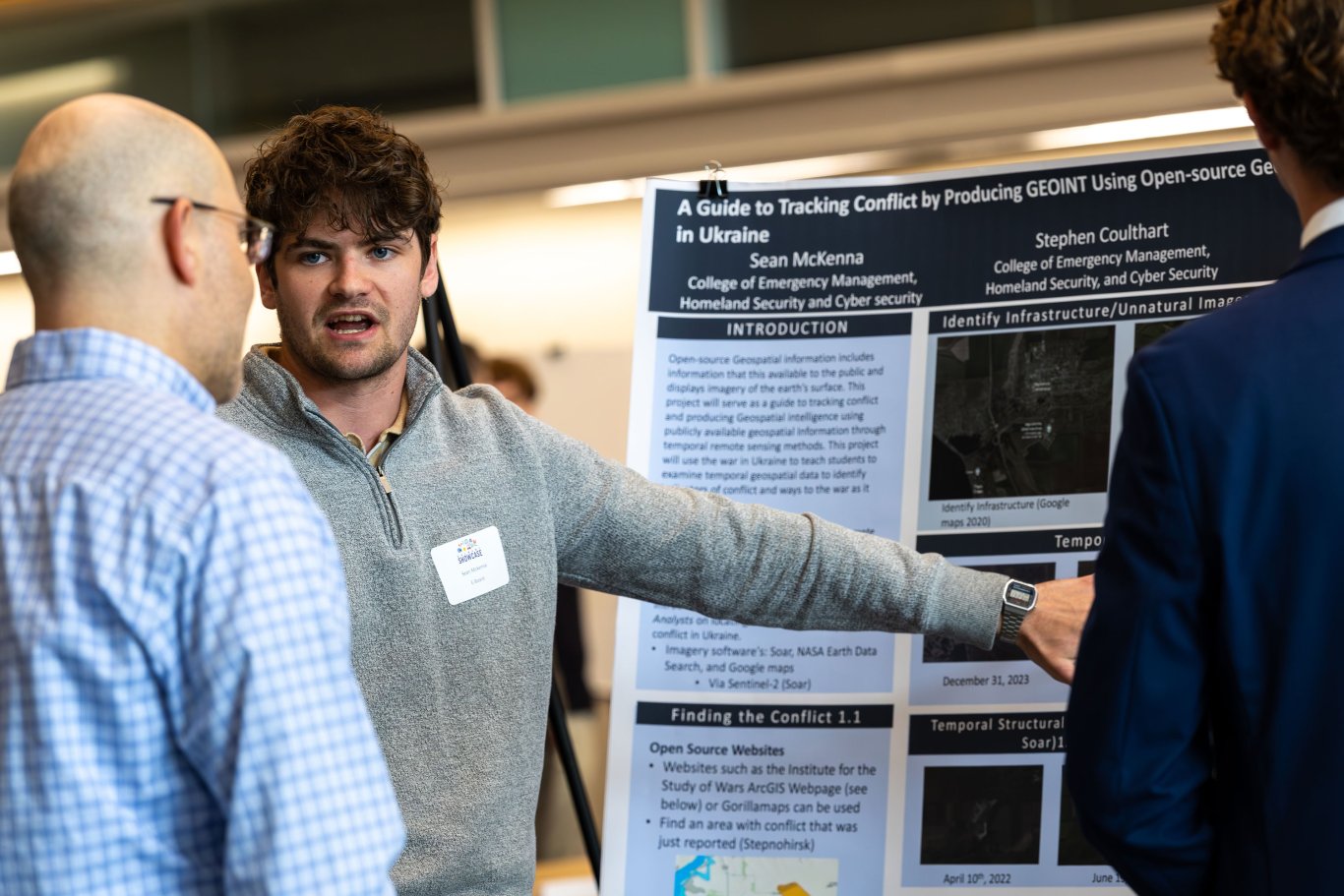
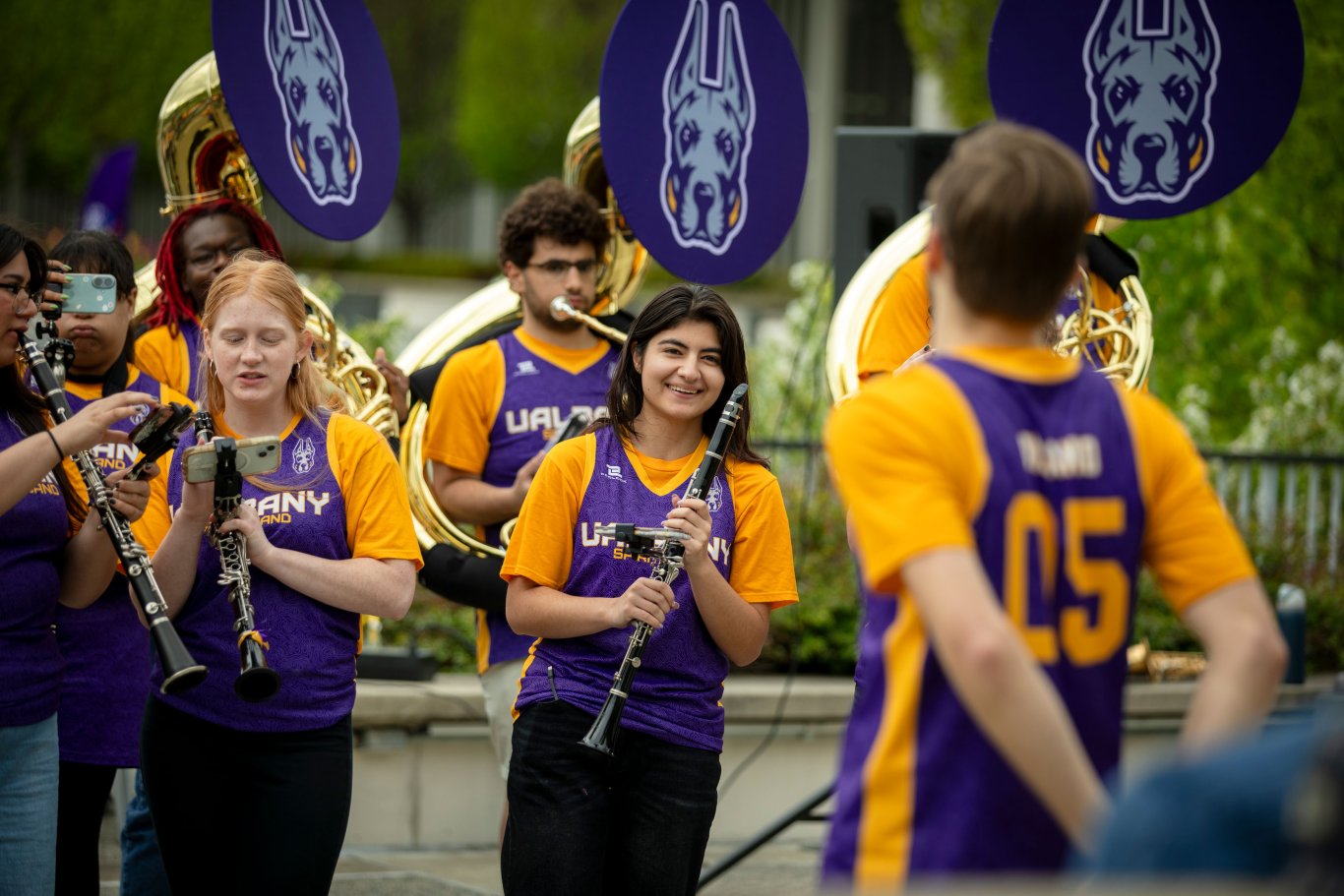



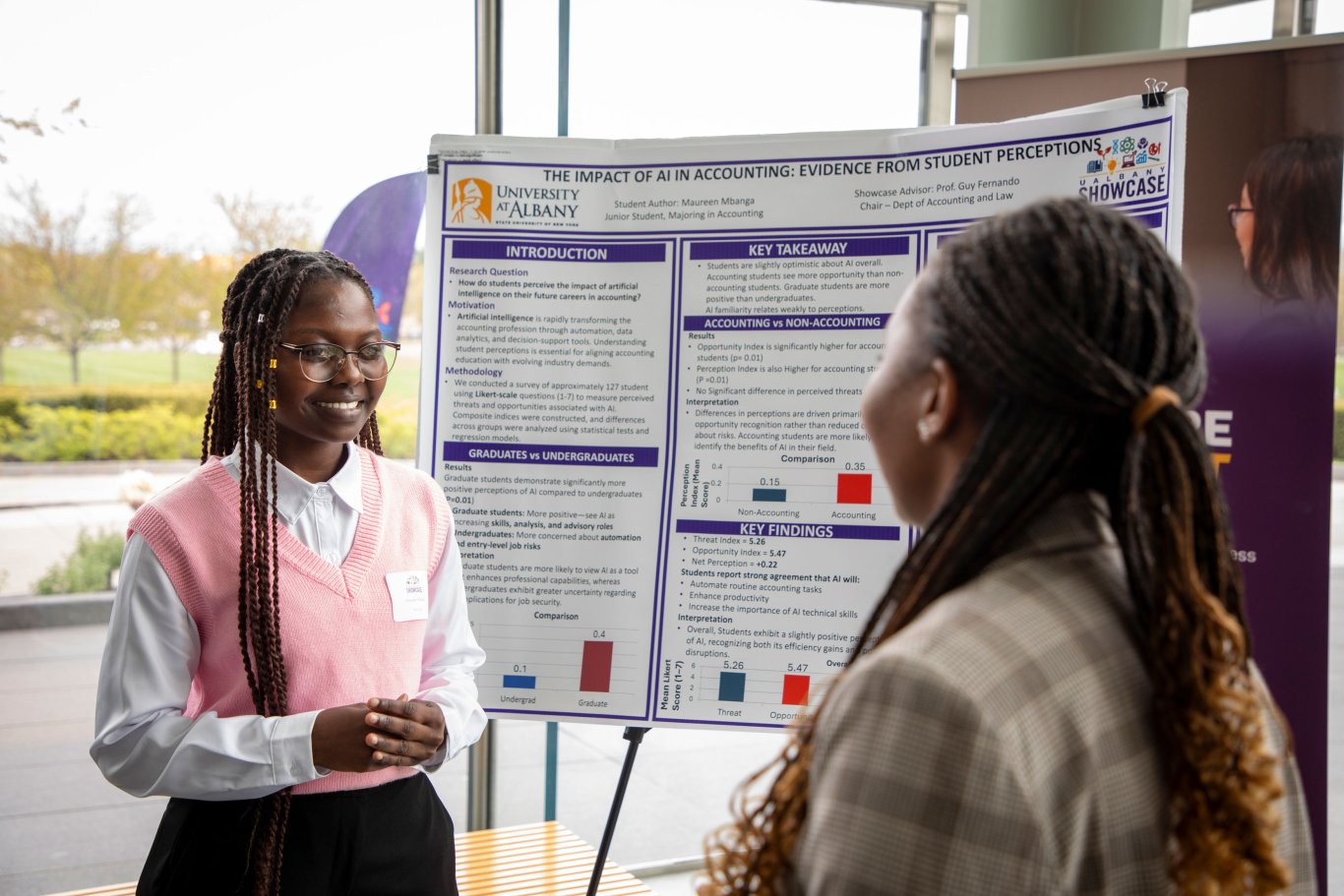
All students presenting a research poster as an individual were eligible to win one of eight Showcase Partner Awards.
Student presenters were nominated by their school or college’s Showcase Liaison, and then each nominated presentation was judged by faculty from the student’s school or college.
The winning students were each awarded $250. Thank you to our generous Showcase partners!
Raneem Afifi
Showcase Presentation: Film: Gender Studies is Burning
Department of Women's, Gender, and Sexuality Studies, College of Arts & Sciences
Ky Krause
Showcase Presentation: Learning Under Watch: AI Surveillance, Student Autonomy, and the Politics of Educational Contro
Department of English, College of Arts & Sciences
David Finch
Showcase Presentation: On-field games for the Tri-City Valley Cats
Department of Information Sciences and Technology, College of Emergency Preparedness, Homeland Security & Cybersecurity
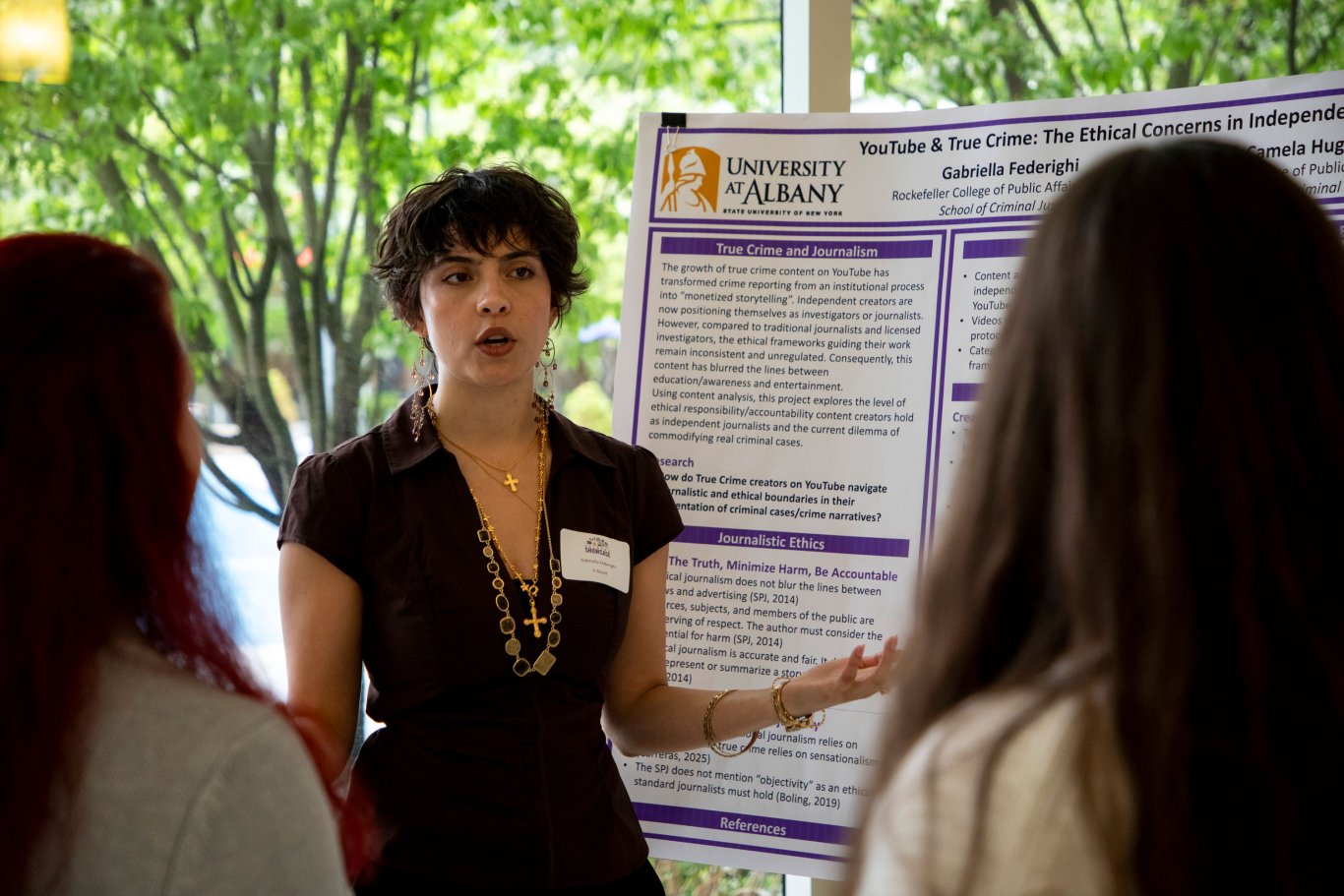
Gabriella Federighi
Showcase Presentation: YouTube & True Crime: The Ethical Concerns in Independent Journalism
School of Criminal Justice, Rockefeller College of Public Affairs & Policy
Jaime Gahtah
Showcase Presentation: The portrayal of female characters in children's stories can reinforce gender role stereotypes
Department of Educational and Counseling Psychology, School of Education
Irien Akter
Showcase Presentation: Forecasting “Neg Storms” Time – Aware Modeling of Toxic Situations in Social Media.
Department of Computer Science, College of Nanotechnology, Science, and Engineering
Natalie Metz
Showcase Presentation: Safer Smoking Initiatives and Hepatitis C Elimination: A System Dynamics Perspective for New York State.
Massry School of Business
Leo Meurs
Showcase Presentation: Capturing Team Meeting Dynamics with Microphone Arrays and Automated Speech-to-Text Systems
Massry School of Business
This award honors students who have demonstrated excellence and innovation as part of an original course-related research project that utilizes library resources.
2026 Winners:
This award honors student library employees who have contributed outstandingly to the University Libraries, while maintaining a solid academic record.
2026 Winners:
This award honors faculty/student collaborators who have completed a project that leads to an improvement in the services of the University Libraries and makes a positive contribution to the profession of librarianship.
2026 Winners:
This award honors student library employees and full-time library staff members who wish to become librarians.
2026 Winner:
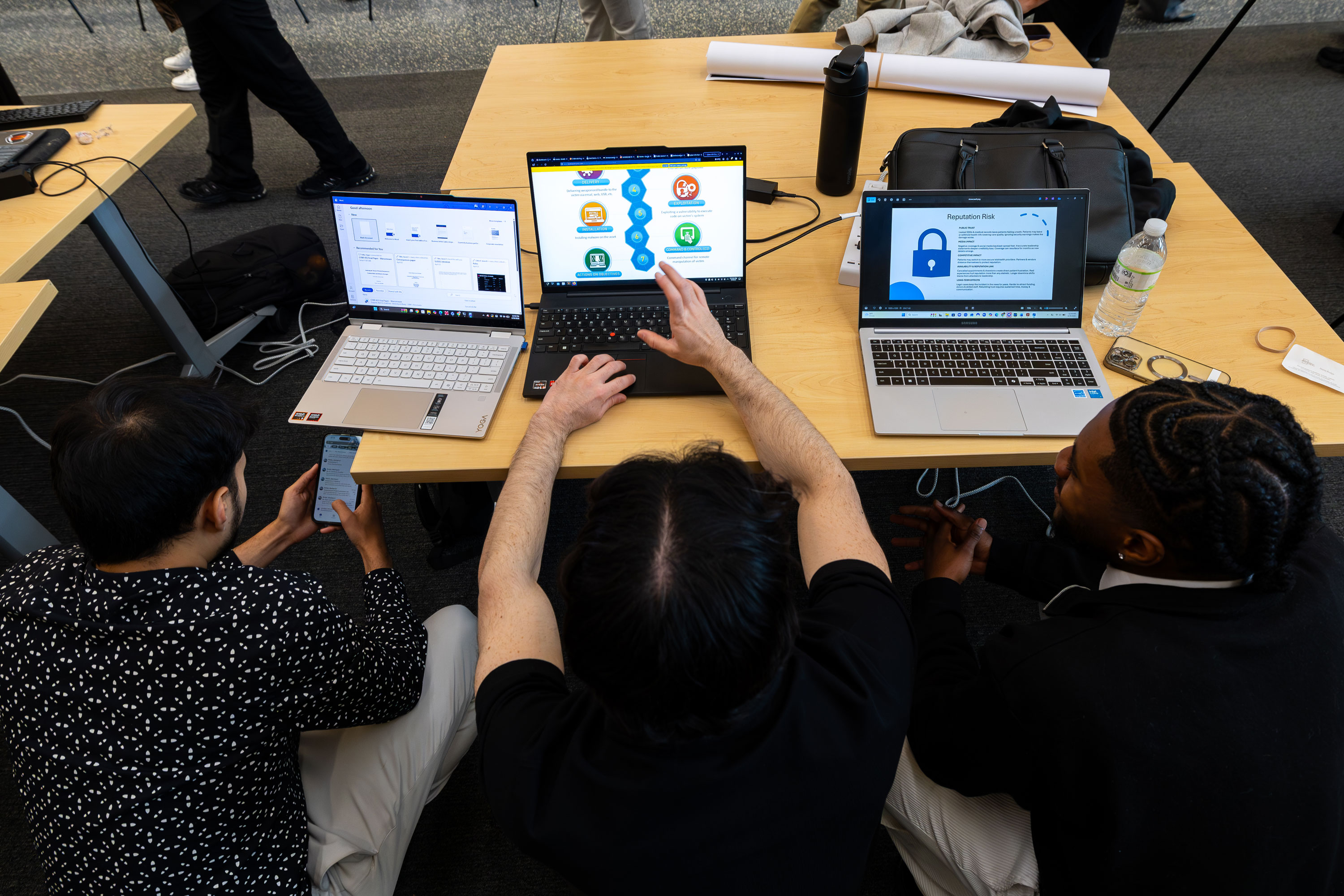
Aidan Doherty & Giuseppe Nicastri
Showcase Presentation: On-field games for the Tri-City Valley Cats
Department of Information Sciences and Technology
Winner:
Honorable Mentions:
Winner:
Honorable Mentions:
Winners:
Honorable Mentions:
Winners:
Honorable Mentions:
Winners:
Honorable Mentions:
Winners:
Honorable Mention:
Experience Showcase 2026 through the eyes of nine current UAlbany students.
Showcase Presentation: MFA Thesis Exhibition - Art and Art History
Academic Program: MFA in Studio Art
Showcase Presentation: Smart Numbers: The Rise of AI in Accounting and Finance
Academic Program: BS in Accounting
Showcase Presentation: Racial and Ethnic Disparities in Maternal Mortality in the United States, 2018–2023 EPI 553
Academic Program: DrPH in Public Health
Showcase Presentations:
Academic Program: BS in Informatics
Showcase Presentations:
Academic Program: BS in Electrical and Computer Engineering
Showcase Presentations:
Academic Program: BS in Electrical and Computer Engineering
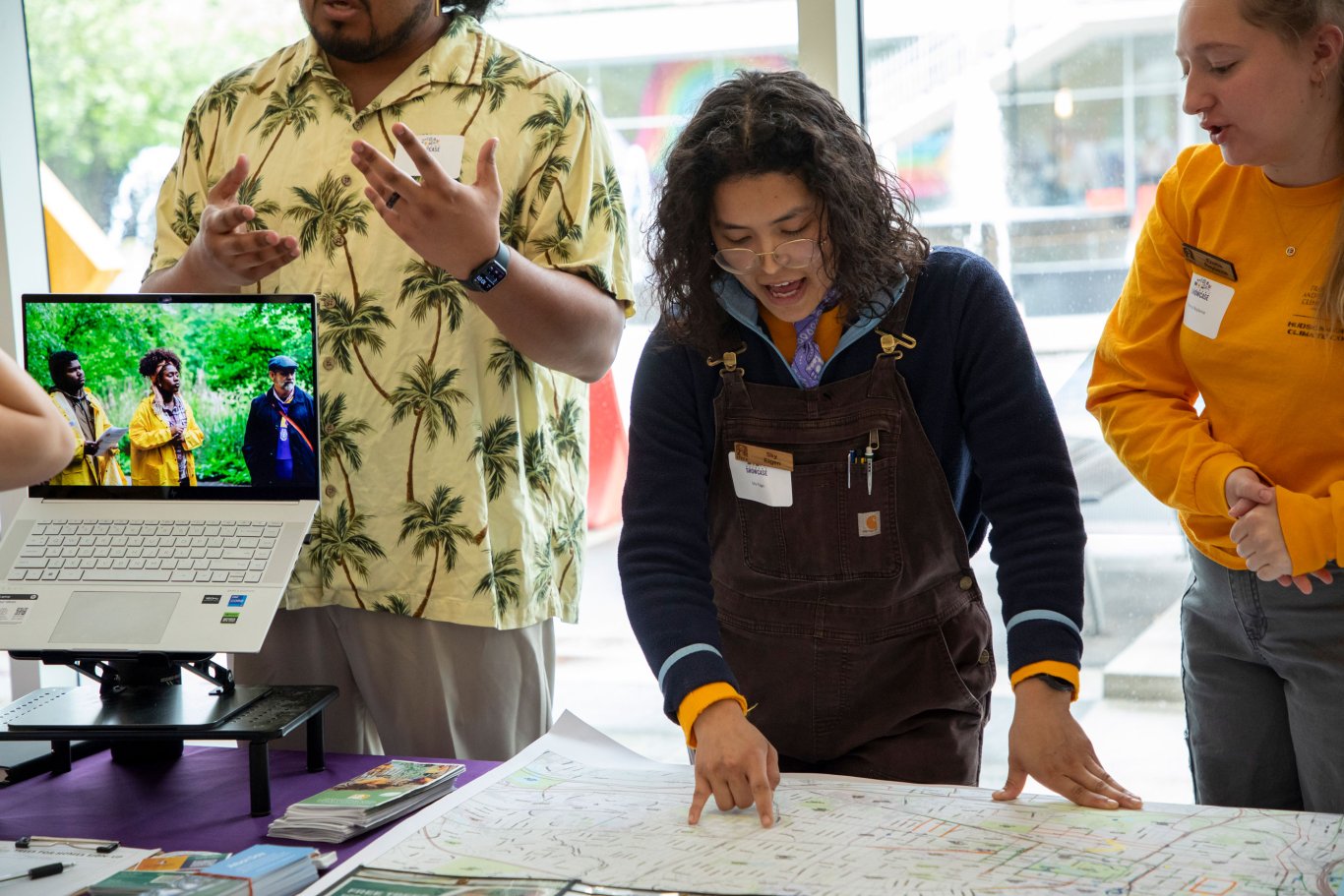
Showcase Presentation: ITECA Hudson Mohawk Climate Corps & Intergenerational Community Advisory Council
Academic Program: MS in Biodiversity, Conservation, and Policy
Showcase Presentation: YouTube & True Crime: The Ethical Concerns in Independent Journalism
Academic Program: BA in Sociology and BA in Criminal Justice
Showcase Presentations
Academic Program: BS in Physics
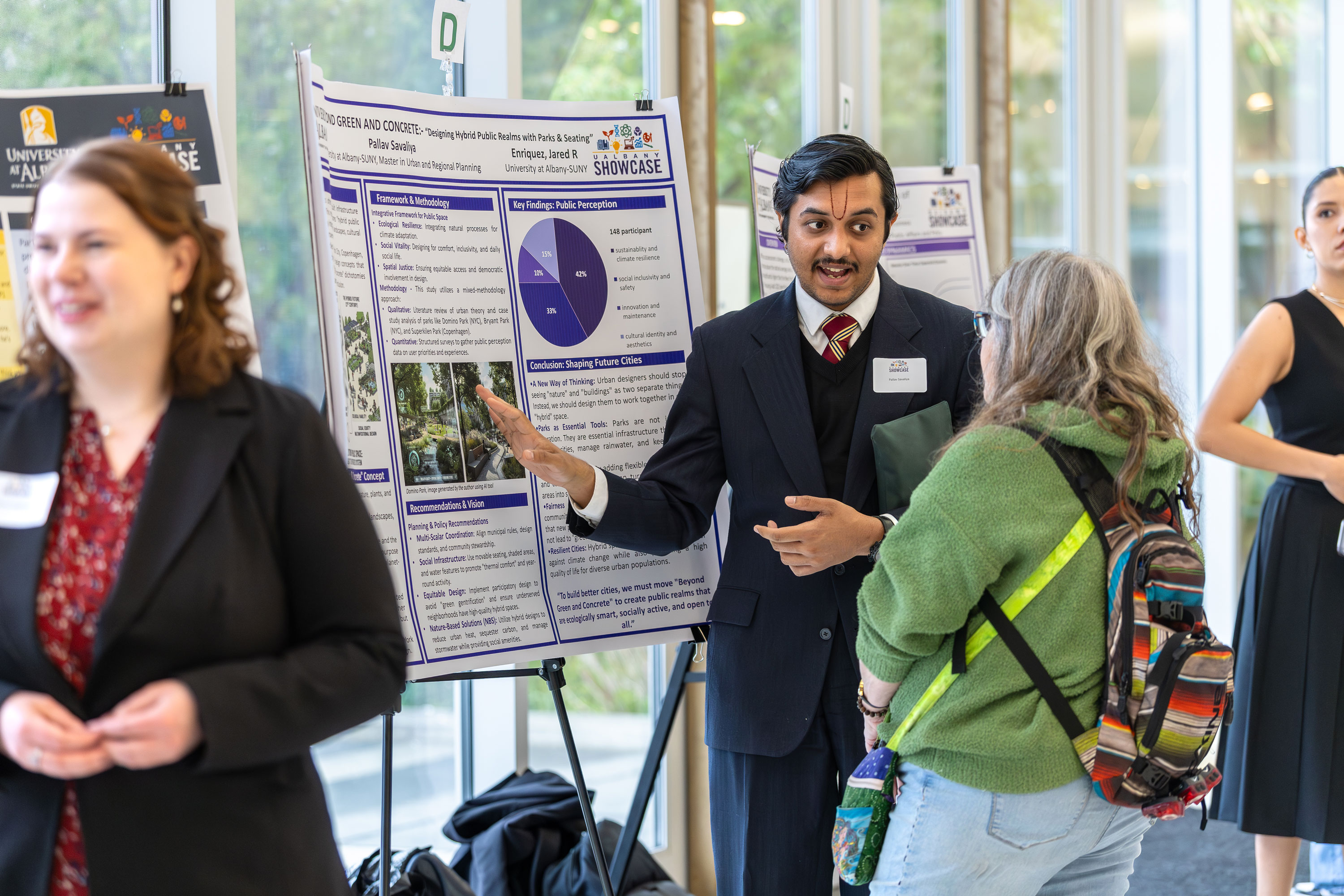
We hope to see you at future Showcase Days!
Showcase 2027: Wednesday, April 28, 2027
Showcase 2028: Tuesday, May 2, 2028
Showcase 2029: Wednesday, April 25, 2029
Showcase 2030: Thursday, May 2, 2030







Anyone can support UAlbany Showcase by making a monetary donation of any size.
Your generosity will help fund the educational opportunities available to both undergraduate and graduate students.










President's Office
Division of Finance and Administration
Division for Research and Economic Development
The University at Albany Foundation
Alumni Association
AI Plus
AI & Society College
Research Foundation Human Resources
Office of Economic Development, Entrepreneurship, and Industry Partnerships
New York State Writers Institute