Class Permissions

This information is intended for academic schedulers. Instructors should review the Permission Numbers page.


What are Class Permissions? 

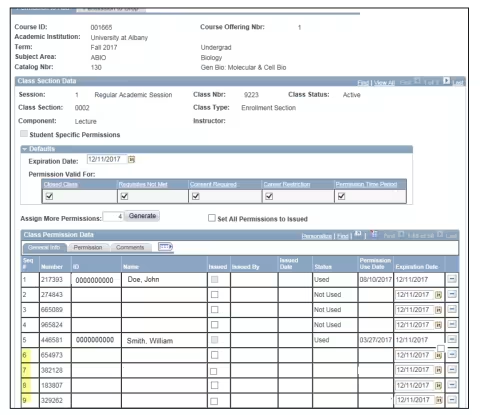
Academic departments can generate and issue two types of permissions:

  • General Permissions grant permission using a randomly generated number (meaning anyone with the number can use it to register for the class section). If a student uses a General Permission Number (CPN) and later drops the class, they cannot use the same permission number again. A permission number may be used until the permission expires or until the last day to add a class with permission, as indicated on the Academic Calendar.
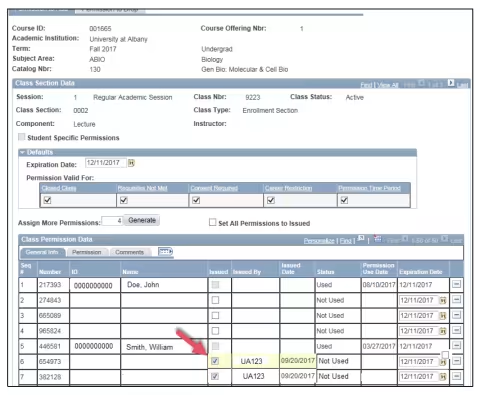
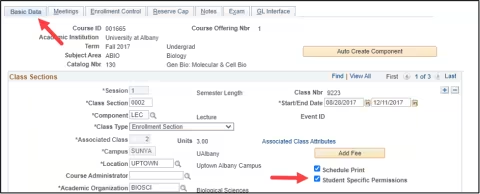
  • Student Specific Permissions grant permission to individual students using their ID numbers, without generating an actual permission number. If a student uses a Student Specific Permission and then drops, they can use the permission again. Permission issued to a student may be used until the permission expires or until the last day to add a class with permission, as indicated on the Academic Calendar. It is very important that the academic department considers setting an expiration date. Student Specific Permission cannot be removed once the status on the permission changes to "used" or "used then dropped".

What class permissions will and will not allow depends on the class's location:
 

Permissions for classes located in a physical UAlbany classroom

Permissions for classes located in a physical UAlbany classroom (Facility ID) will allow an override of the enrollment capacity of the class if the number of students enrolled is lower than the assigned classroom’s capacity. 

If the number of students enrolled is lower than the room capacity, permissions will also allow an override of a requirement group at the catalog level and/or section level, as well as an override of a reserved seat in a class. 

Permissions will not allow additional enrollment in a class if the room capacity has already been met.

However, there are some use cases where permissions will act differently than described above. This is especially true in the following circumstances:

  • Lecture classes with an associated discussion or lab: Before assigning permissions in these sections, departments must be certain the number of students enrolled in all associated discussion or lab sections will not exceed the room capacity of the associated lecture section. 

  • Combined classes (cross-listed, shared resource and same time/place): Before assigning permissions in these sections, departments must be certain the number of students enrolled in all sections that are combined will not exceed the assigned classroom’s capacity. 

Permissions for classes that are arranged, fully online or held off campus

Permissions for classes that are arranged, fully online or held off campus will allow an override of the following: 

  • the enrollment capacity  

  • a requirement group at the catalog level 

  • a requirement group at the section level 

  • a reserved seat in a class 

Here are some other important items to remember:
  • A class section can have only one type of permission (General Permission or Student Specific Permission), not both.
  • Permission can only be assigned to enrollment sections.
  • An enrollment requirement group can check for requisites during registration instead of using class permission to regulate enrollment.
  • Requiring permission to enroll in a class or setting a class to require instructor or department consent will override reserves and enrollment requirement groups, negatively affecting reserve enrollment totals.
  • The type of permission enabled on a class will roll from like-term to like-term. For example, if Student Specific Permission was enabled for a class in Fall 2021, when that class is rolled to Fall 2022, Student Specific Permission will stay enabled. 


Instructions for Managing Class Permissions

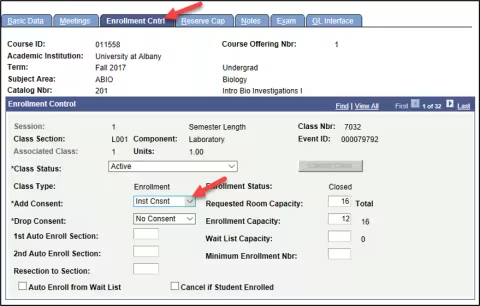
Identify the Enrollment Capacity & Total Number of Students Enrolled in a Class
  1. Log into PeopleSoft. Use the Main Menu to navigate to “Maintain Schedule of Classes." (Your pat will be "Curriculum Management,” then “Schedule of Classes” and finally “Maintain Schedule of Classes.") 
     

  2. Enter the Term, Subject Area, Catalog Number and select Search.
     

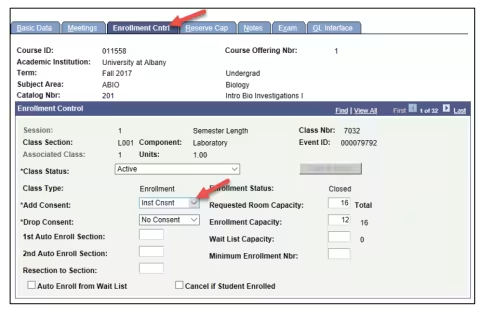
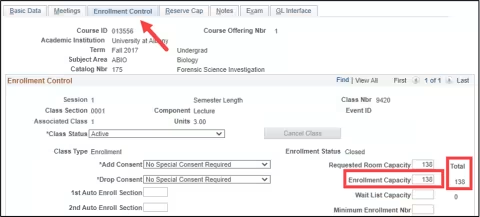
  3. Select the Enrollment Control Tab and view the Enrollment Capacity and Total enrolled. 
     

A screenshot of the PeopleSoft page, showing how to identify the enrollment capacity and total number of students enrolled in a class.
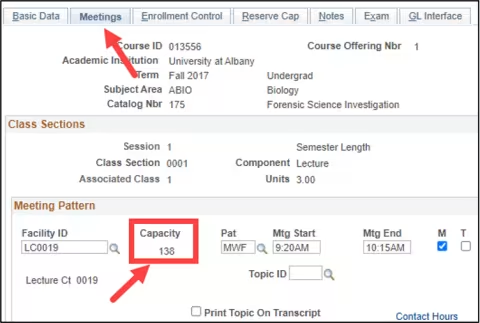
Identify Classroom Capacities
  1. Log into PeopleSoft. Use the Main Menu to navigate to “Maintain Schedule of Classes." (Your pat will be "Curriculum Management,” then “Schedule of Classes” and finally “Maintain Schedule of Classes.") 
     

  2. Enter the Term, Subject Area, Catalog Number and select Search.   
     

  3. Select the Meetings Tab and view the Capacity.
     

A screenshot of the PeopleSoft page, showing how to identify classroom capacities.
Generate & Manage General Permissions

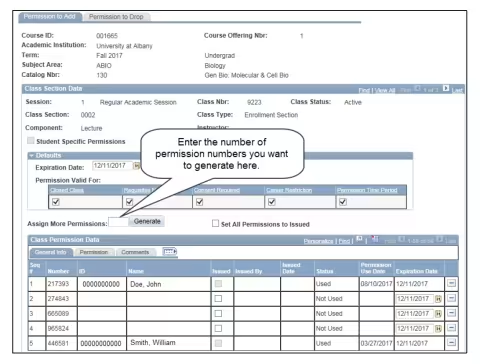
Follow these instructions to generate a general permission number: 
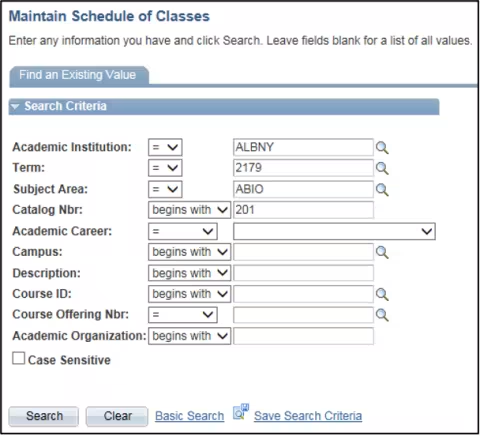
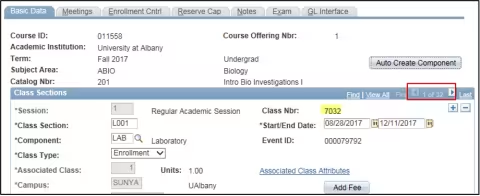
  1. Log into PeopleSoft. Then, use the main menu to navigate to “Maintain Schedule of Classes.” (Your path will be “Curriculum Management,” then “Schedule of Classes,” then “Maintain Schedule of Classes.”) 
     
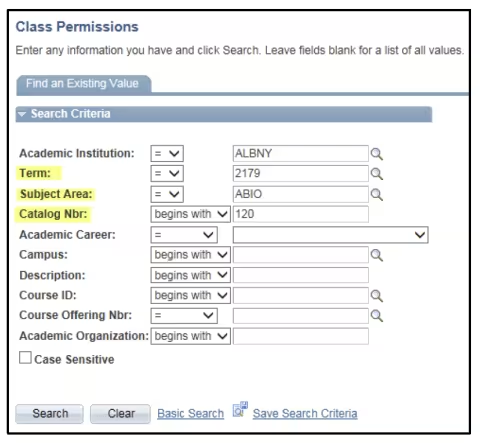
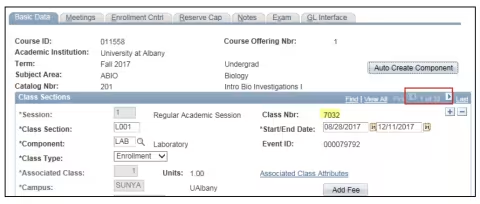
  2. Use the “Term,” “Subject Area” and “Catalog Number” fields to search for the class. Then select “Search.” 
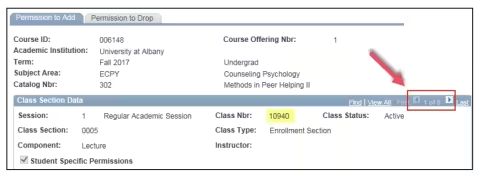
A screenshot of the PeopleSoft page, showing the actions described above in Step 2.
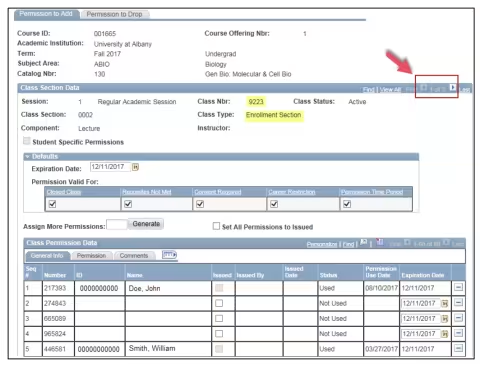
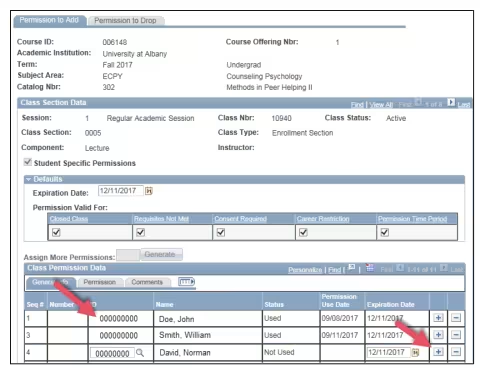
  • Once a student uses a permission number, its status will change from “Not Used” to “Used,” displaying the student’s ID number, name and the date they used the permission number. 
Assign & Manage Student Specific Permissions

Follow these instructions to assign a Student Specific Permission: 
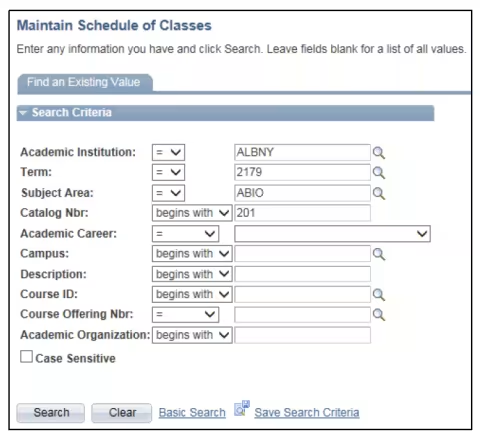
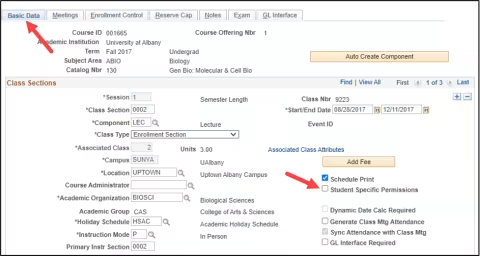
  1. Log into PeopleSoft. Then, use the main menu to navigate to “Maintain Schedule of Classes.” (Your path will be “Curriculum Management,” then “Schedule of Classes,” then “Maintain Schedule of Classes.”) 
     
  2. Use the “Term,” “Subject Area” and “Catalog Number” fields to search for the class. Then select “Search.” 
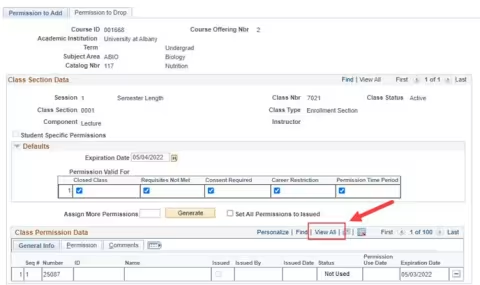
A screenshot of the PeopleSoft page, showing the actions described above in Step 2.
  1. Select “Save.” 
     

A permission number will not appear for Student Specific Permissions. Instead, the identified students’ ID numbers and names will appear on the permission number page, which means the identified students can now enroll in the class. 

The system will automatically allow the identified students to enroll in the class until either the permission expires or until the last day to add a class with permission, as indicated on the Academic Calendar. It is very important that the academic department considers setting an expiration date. Student Specific Permission cannot be removed once the status on the permission changes to "used" or "used then dropped".