


Using the Accessibility Assistant in Word
The Accessibility Assistant in Microsoft Word is a built-in tool that helps users create documents that are accessible to readers with disabilities. It identifies and suggests fixes for common accessibility issues, ensuring that content can be easily read and understood by individuals using screen readers or other assistive technologies. The tool is important because it promotes better communication and equal access to information for all users, making it a valuable resource for creating inclusive content.
Opening the Accessibility Assistant in Office for Windows
- Go to the Review tab.
- Select Check Accessibility.
- Click Check Accessibility.
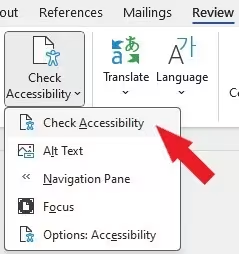
If you have an older version of Word, you may need to go to:
File > Info > Check for Issues > Check Accessibility
Opening the Accessibility Assistant in Office for Mac
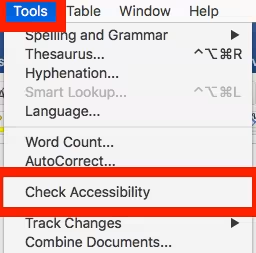
- Go to the Tools menu.
- Select Check Accessibility.
Reviewing Issues in the Accessibility Assistant
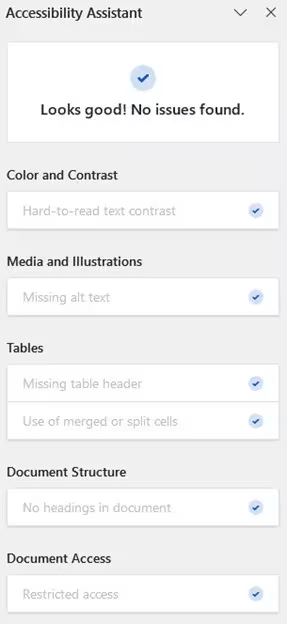
The Accessibility Assistant will open to the right of the document and provides a list of errors, warnings and tips related to accessibility issues in the document. The accessibility assistant will flag issues with color and contrast, media and illustrations, tables, document structure, and document access. It will also provide guidance to fix the issues in the document.
Learn More about the Word Accessibility Assistant
Microsoft provides written instructions and additional information to help you make the most of the Accessibility Assistant in Word. The Massachusetts Office on Disability also provides a helpful video overview of the Assistant.