


Hi site editors!
Web Services recently made updates to Drupal tables and SharePoint for Web Documents. Here’s what you need to know:
Drupal Tables
Summary: Tables are still responsive — the recent change simply improves how tables respond to screen size and assistive technology.
What changed and why
- Drupal has always supported responsive tables, but behavior was inconsistent.
- Tables could create very narrow columns or cut off content on smaller screens or at higher zoom levels.
- The updated design ensures tables respond more reliably across devices and for users with accessibility needs.
- Testing (including with users who rely on magnification) showed improved usability.
What it means for you
- Some tables now include arrow buttons to scroll horizontally through columns. See an example table.
- These buttons may appear only on smaller screens or on larger tables.
Continue building and maintaining tables as usual, with one important change: Always leave the “Width” field in Table Properties blank.
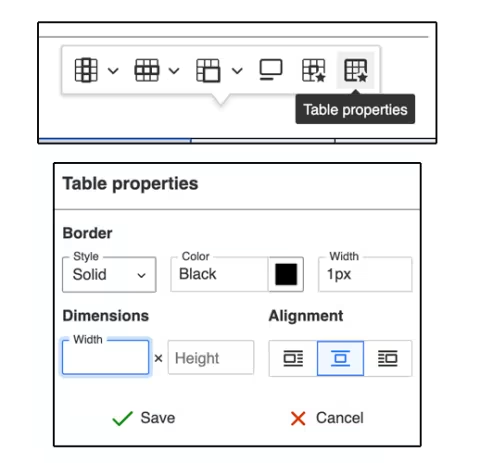
- If a table should have scroll arrows but doesn’t, remove any width value or submit a Web Services ticket for help.
SharePoint for Web Documents
Summary: Web documents must be hosted in the appropriate SharePoint for Web Documents, and it is now easier to create shareable links.
What changed and why
- SharePoint for Web Documents now automatically generates links set to “Anyone with the link can view” — reducing the number of steps it takes to create a proper shareable link.
What it means for you
- All web documents must be hosted in your site’s SharePoint for Web Documents, not personal OneDrive accounts.
- Why? This ensures continuity if staff changes occur and allows Web Services to fix critical issues should they arise.
- All web document links must be set up so that "Anyone with link can view.”
- Shareable links should never allow document editing or reviewing.
- Why? This protects the original document from unintended public edits.
Visit our SharePoint for Web Documents webpage for updated step-by-step instructions on uploading, replacing and linking files.
Thank you for your partnership in maintaining the University website! Please reach out with any questions or concerns.
Regards,
Web Services