


Click a link below to skip to that section of the page:
Online Resources
Instructors teaching or developing graduate courses should review our Course Changes & Syllabus Guide.
Here are some additional online resources faculty and staff may find useful:
- Graduate Bulletin
- Graduate Academic Policies & Procedures
- Standards of Academic Integrity
- Faculty Online Teaching Support
- Center for the Advancement of Teaching, Learning, and Online Education (CATLOE)
- Community Rights and Responsibilities
- Supplemental Support Services
- Research Regulations
- Faculty Handbook
- Classroom Disruption Guidelines
- Faculty Library Guide
- SUNY Center for Professional Development
The Graduate School has a SharePoint website where training materials and the following documents are available:
- Slate training materials (please make sure to request Slate User Access.)
- Graduate Program Sell Sheets
- Monthly Newsletters
- Academic Affairs training materials (dismissal procedures, GPA review, transfer/advanced standing credit information)
You’ll need to use your Net ID and password to log in. Once logged in, click on each tab to view the relevant content.
online-resources
Academic Affairs Forms
- Academic Department Contact Information for JotForms - Academic departments receive automatic copies of processed graduate student online forms. This form will update the contact email address for academic departments.
- Course and Program Action Form - This is an online form with a workflow from the department to the appropriate school/college Dean's Office for approval, and then to the Graduate School. Questions related to these types of requests can be addressed to the Graduate Course-Program Changes email ([email protected]).
- Violation of Academic Integrity Report Form (online submission)
Note: The Graduate Transcript Milestone Form has been replaced with an online process. Please log into IAS/PeopleSoft to submit milestones. Security and training materials can be obtained through the Registrar's Office.
academic-affairs-forms
Assistantships, Fellowships & Tuition Scholarships
assistantships-fellowships
Guidelines & Forms
- 2025-2026 Guidelines for Departments
- 2026-2027 Guidelines for Departments
- Tuition Scholarship Award Form
- Instructions for processing a State Funding Offer Form on Slate
- Additional Service Waiver Form for Graduate, Teaching, and Research Assistants
- Reduced Course Load Form for Graduate, Teaching, and Research Assistants
- Exception to the Graduate Tuition Scholarship Policies Form
Templates
Appointment Dates for Graduate & Teaching Assistants
- Academic Year 2025-2026: August 14, 2025 to May 20, 2026
- Fall Semester Only: August 14, 2025 to December 31, 2025
- Spring Semester Only: January 1, 2026 to May 20, 2026
- Academic Year 2026-2027: August 13, 2026 to May 19, 2027
- Fall Semester Only: August 13, 2026 to December 30, 2026
- Spring Semester Only: December 31, 2026 to May 19, 2027
Developing or Amending a Program
The University at Albany has a structured governance and administrative review process for establishing and modifying graduate degree and certificate programs, a responsibility vested with the faculty.
Please visit our Developing or Amending a Program and Course Changes & Syllabus Guide pages for detailed information on our procedures.
develop-amend-program
What to Know Before You Receive the Request
- Progress Report Workflow: A professor receives the progress report request via email and submits the progress report. The student, advisor and Success Team Members will receive an email with a copy of the progress report. The student will be provided with resources and will be encouraged to communicate with the instructor and department. A professor can also view the Graduate Progress Report on their Professor Home screen in EAB Navigate.
- Graduate Progress Report Alerts: There are graduate specific Progress Reports Alerts that must be used for graduate students. Undergraduate Education also sends out Progress Reports and utilizes a separate set of alerts. Please make sure you are using the following graduate alerts:
- Grad – Progress Feedback: Excessive Absences
- Grad – Progress Feedback: Positive Feedback
- The Positive Feedback alert is available for faculty who would like to provide positive feedback to their students. The goal of Graduate Progress Reports is to identify at-risk students and provide resources. However, we wanted to provide an option for faculty to provide positive feedback as well. The Kudos alert will only send an email to the student (advisors and Success Team Members do not receive an email for this alert).
- Grad – Progress Feedback: Low Quiz or Exam Grade
- Grad – Progress Feedback: Missing or Late Assignments
- Grad – Progress Feedback: Other
- Success Team Members notified: Based on program, Success Team Members (Advisors, Graduate Program Directors, Graduate Program Additional Contacts and Graduate Administrative Contacts) will also receive emails when progress reports are submitted for at-risk students.
- Large courses: While we anticipate that these reports will be minimally time-consuming, we understand that this may be challenging for larger courses. The expectation at the graduate level is that you please focus on those students you would identify as at-risk in your course and note that in the report.
- Multiple instructors: If there are multiple instructors listed for a course, or the course has a discussion section or lab as a co-graded component, the primary instructor of the course should determine who will submit the progress report for the student. Only one reply is needed per student per course.
- Students not on the roster: If you have a student who is not on the roster, please notify the Graduate School by emailing [email protected] immediately.
- Entering feedback and idle time: For security purposes, the entry page is only active for a two-hour window of time. Leaving the feedback browser tab idling or inactive for longer than the two-hour time frame may cause data loss. We recommend saving frequently.
- Students included in feedback: Students receive emails for progress reports so they can see the feedback directly. They are provided with campus resources in the email and are encouraged to reach out to the instructor and department. Advisors and Success Team Members will also receive emails when progress reports are submitted for at-risk students.
How to Fulfill a Progress Report Request
Step 1: Click the Link
- The request email is entitled, “Graduate Progress Reports - Student Feedback Requested.”
- There will be a link at the bottom of the email entitled, “Click to Begin Entering Student Feedback.” Click that link.
- There will also be an expiration date by which you should submit all of your feedback.
- The link is unique to your courses, and you should only share it with people authorized to submit grading reports on your behalf.
- A professor can also view the Graduate Progress Report on their Professor Home screen in EAB Navigate.
Step 2: Enter Feedback
- On the entry page, there are rosters of the selected students separated by course number.
- For each student, please select “Yes” or “No” to identify if a student is “At-Risk to Fail Your Class.”
- If you select “Yes,” this means the student is "At-risk to Fail Your Class” and you will be prompted to choose a reason. Please choose "Progress Feedback" from the available Alert Reasons.
- Please only choose an Alert Reason for students who are "At-risk to Fail Your Class.” Choosing an Alert Reason initiates an email to the student, advisor and Success Team Members
- Please continue to fill out as many fields as possible.
- If you would like to save your work and come back to it, please click the blue “Submit only marked students (but I’m not done)” button at the bottom of the page.
Step 3: Submit Feedback
- When you are done entering feedback, please click the blue “Submit all unmarked students as not At-Risk (I’m all done)” button at the bottom of the page.
- When you submit your feedback, the screen will show a message saying you’ve successfully completed your feedback.
Success Team Members
Success Team Members are faculty and staff members listed in EAB Navigate based on individual graduate programs and tied to students’ records. Success Team Members are visible to students in EAB and are automatically added to students based on graduate academic programs.
Success Team Members exist in EAB separate from the student's declared advisor in PeopleSoft. Declared advisors in PeopleSoft will also appear in EAB but are declared directly in PeopleSoft by the academic department.
Success Team Member Roles
Success Team members can query their students more easily in EAB and will receive alerts when progress reports are submitted for at-risk graduate students.
Success Team Members can be assigned as one of the following available roles:
- Graduate Program Director
- Graduate Program Additional Contact
- Graduate Administrative Contact
Establishing Success Team Members
Academic departments can submit the Graduate School's digital EAB: Success Team Member Form to add, update or remove Success Team Members.
To view existing Success Team Members in EAB Navigate, academic departments should run the following reports in EAB, depending on the role type:
- Graduate Program Director Success Team Members
- Graduate Program Additional Contact
- Graduate Administrative Contact
These links will prompt you to log into EAB Navigate. You will be directed to the specific report type, where you can adjust the enrollment term and add Data Filters to search based on school/college or major (graduate program).
To adjust the enrollment term, click the X next to the term you would like to remove from the Value field.

Once you click the X, the term is removed.

To select a new term, click on the drop-down menu under Value.
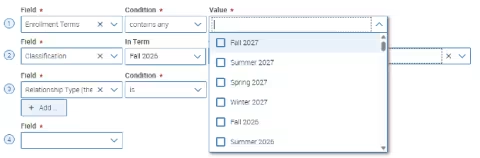
Check the box next to the appropriate term and this will populate into the Value field.
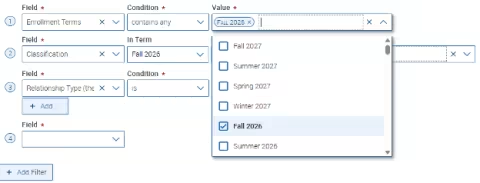
To add a new Data Filter, please click on Add Filter.
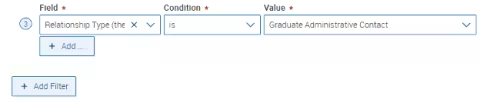
A blank Field will appear.
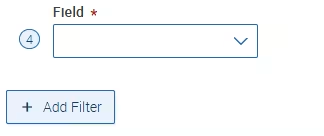
Click the drop-down menu and scroll down to Student Area of Study to add the College (school or college) or Major (graduate program).
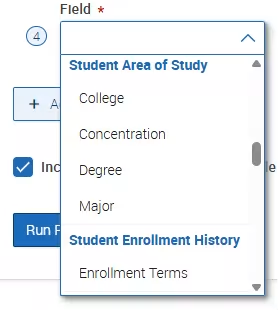
Once you select your option, a new blank Value field will appear.

Click the drop-down menu and select the appropriate criteria.
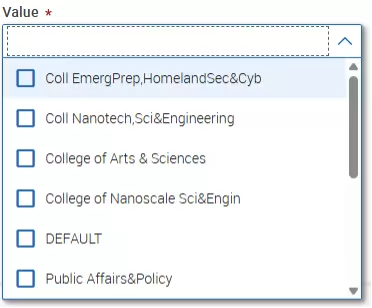
Once the fields are selected, click Run Report.
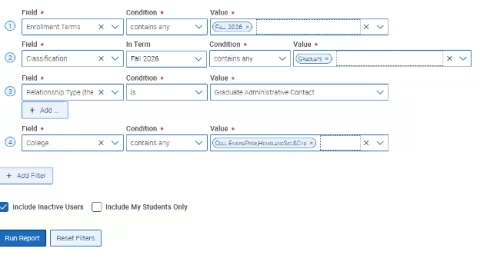
This report will return all students who are enrolled for the term specified, in the school/college/major selected, who have a Success Team Member identified in the role being queried. In the report, review the Assigned Staff column.
This will provide academic departments with the faculty and staff names assigned to students. If the report is blank or missing a role, that means we do not have your Success Team Member's information. To export the results, click on the three horizontal lines to the right of the results and select Export.
Once the reports are viewed, the department can then submit the online form to add, update, or remove faculty and staff members as Success Team Members. Please note, graduate assistants cannot be assigned as Success Team Members.
Student Absence Guidance
Instructors must use their best judgment in deciding whether and how to accommodate student absences, and in asking for and evaluating supporting documentation.
Instructors may at their discretion excuse absences that last longer than one week or cause a student to miss a major exam or assignment without involving the Graduate School.
However, the Graduate School may issue a formal notice of academic accommodation if the instructor and the student cannot come to an agreement on how to accommodate an absence that exceeds one calendar week and/or has caused the student to miss a major exam or assignment. Note that the office will not extend absence accommodations beyond two calendar weeks, though instructors are free to extend accommodations on their own responsibility for a longer period, if appropriate in the context of their classes.
In these cases, students must provide supporting documentation to Colleen Davis, Vice Dean of the Graduate School, who will submit an official request for academic accommodations.
For student athletes, please review the athletics missed-class policy.
Please visit the Registrar’s Office website for guidance on student and instructor absences due to religious observance.
absence-guidance