


The online Faculty Activity Report system, created through the Watermark corporation, replaces the discontinued "paper" system and the University's homegrown online reporting option. The order of the sections, however, remains essentially the same.
Click on any "General Operational" topic below for additional information, or scroll down in your browser to read the entire FAQ
For information specific to a particular activity area, please click any of the links below
Teaching and Other Activities
Scholarship, Research and Grants
Publicly Engaged Work/ Activities
Honors, Awards, Certificates, etc.
Logging on
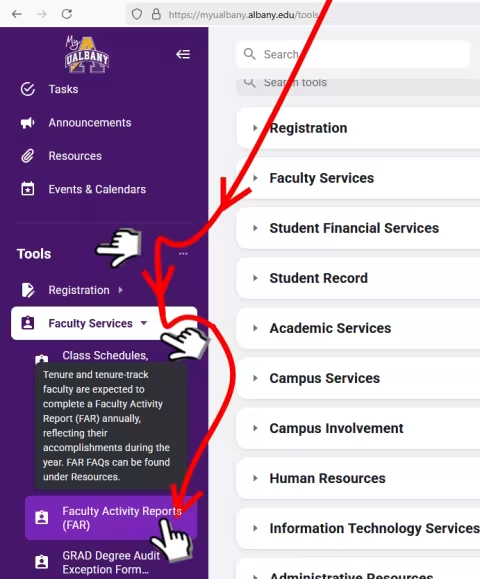
Go to MyUAlbany and click "LOG ON", enter your UAlbany login and password. Next go to the Tools section on the left, and select Faculty Services where you can click on the Faculty Activity Reports (FAR) link. The FAR will open without further logging in, with the University at Albany Watermark on the top.
Main Menu
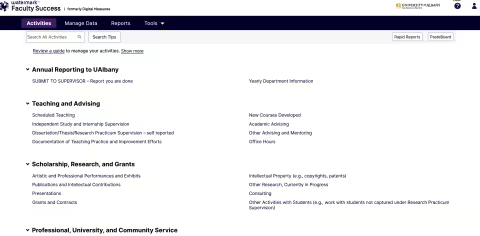
The Welcome Page contains the following menu items:
Manage Activities - (On the left column) This choice displays the screen above and includes the center-menu with the many types of faculty activities. This Manage Activities menu is the initial Faculty Activity Reports (FAR) starting page upon logging in. You are welcome to add, update, or correct activities information all year long.
Rapid Reports - Rapid Reports are reports pre-configured for quick results with default settings. Rapid Reports show the effect that activity data has on the reports shared with department chairs or deans. The same reports are available from the "Run Reports" menu, but with fewer parameters and none of the design features for creating new report designs. See Run Reports in this FAQ.
PasteBoard - The PasteBoard supports copying up to 4,000 bytes of text from a Word or other document to the Pasteboard where portions of the text can then be selected and dragged into FAR activity forms. The PasteBoard may save time by reducing retyping activity records. (The PasteBoard requires the browser to have cookies enabled.)
Manage Data - Only displayed to deans and chairs; The Manage Data utility allows deans or chairs to access the data input forms of faculty in their department. The chair's security role in a department or college determines this access, and the individual accessible faculty is determined by the department and college of the faculty "Yearly Data" record. A check box provides the selection of only enabled accounts, or selection of all accounts, to be viewed or modified.
Run Reports - Reports that come with the FAR, and those designed by UAlbany are listed alphabetically. Departments and Colleges can request new reports by contacting the office of Institutional Research, Planning and Effectiveness. The bottom of the Run Reports list is a choice to create new reports by selecting when, what, and whose activity to report.
Usage Statistics - Only displayed to deans and chairs; The Usage Statistics utility allows deans or chairs to access a report of the number of logins and records added by each individual faculty member in the same department or college. It reports records added for time periods such as the past day, week, month, or year. An Audit of each faculty is available to show the history of all changes made to a faculty member's records. The chair's security role in a department or college determines this access, and the individual accessible faculty is determined by the department and college of the faculty "Yearly Data" record.
Help - A form is available for sending an email support request to Watermark or to UAlbany's Institutional Research office. Unless you check a box to remain anonymous, if Watermark cannot answer a question they will forward it to UAlbany Institutional Research: DM Administrator of the FAR. Help requests have a high priority and a quick response can be expected.
A Note About "Submit to Supervisor - Report you are done"
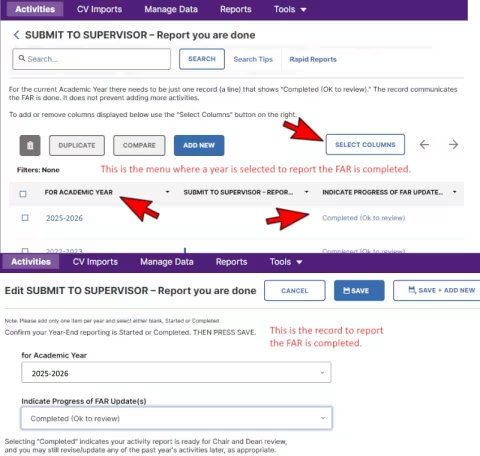
Report you are done---The first menu item, Submit to Supervisor - Report you are done," is essential to complete in order to communicate you have completed the FAR. Within this menu are records for each reporting year. Be sure to select the value, "Completed - (Okay to review)," in the current academic year record, i.e. 2026-2027. This informs Deans, Chairs and Human Resources that you participated in the FAR. Note, the items you save in any other record are available for review regardless of whether you Submit this way or not. However, please be sure to use this form to communicate the status of your FAR.
Check Boxes for Record Manipulation and Selecting Fields to Display
Check Boxes in Sub Menus--Check boxes are use
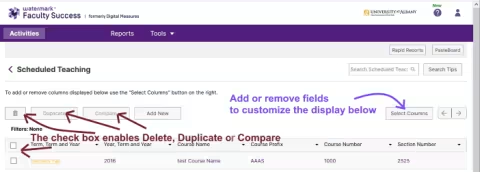
d to delete, duplicate or compare records. Records display beneath the submenu labels. The choice of fields that display in the menus can be changed using a button labeled," Select Columns."
Some Important Distinctions Regarding Dates
The dates placed by faculty on activities are used in all reports to select each period's records. A record with only a start date will be reported as ongoing indefinitely.
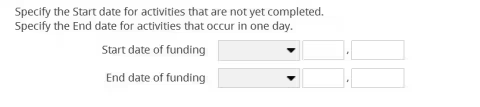
Whenever a start and end date is called for:
- For a one-day event, it is sufficient to enter only the end date, but it is more clear to enter the same date as the start and end dates.
- For a continuing event, enter the start date and leave the end date blank. The activity is continuing and will continue to appear in reports year after year until an end date is entered.
To be assigned to an academic-year a month and year are required. If no date is entered, the system will provide a pop-up reminder to enter at least one date.
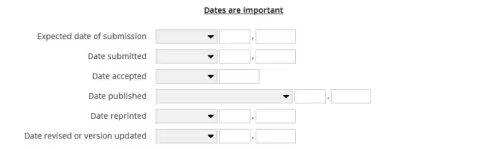
For some categories, such as Publications, there are a series of dates for submission, acceptance, publication, and reprints. These dates are relevant to publication reports. Over time a record can be updated with new dates as they occur.
Record Your Publicly Engaged Work/Activities
Questions and forms on the Faculty Activity Report provide the opportunity to report on publicly engaged work and activities. Several activity forms now include a checkbox to designate a work activity or product as publicly engaged. Definitions of public engagement concepts are provided in the small question mark buttons. (These buttons can also be accessed on the UAlbany Website using this link: Public Engagement Definitions.
All activities and products designated as publicly engaged will be included on the Public Engagement Rapid Report. See instructions to use Rapid Reports.
In some cases the Public Engagement Rapid Report provides significant assistance for completing the “Summary of All Publicly Engaged Work/Activities” form. This new form allows related publicly engaged activities to be grouped and reported on the work products, outcomes/impacts, beneficiaries, and community partners of each grouping. More details on how to report publicly engaged activities are available in this PDF on the outreach site. Public Engagement in the FAR.
Report Information - Top category
Submit to Supervisor - Report you are done
Report you are done---The first menu item, Submit to Supervisor - Report you are done," is essential to complete in order to communicate you have completed the FAR. Within this menu are records for each reporting year. Be sure to select the value, "Completed - (Okay to review)," in the current academic year record, i.e. 2026-2027. This informs Deans, Chairs and Human Resources that you participated in the FAR. Note, the items you save in any other record are available for review regardless of whether you Submit this way or not. However, please be sure to use this form to communicate the status of your FAR.
For deans and chairs: The report that shows the self-reported progress of each faculty is the “Departmental Year End Completion Roster.” This report has sections for each status: Not Updated, Started, and Completed. Select “Run Custom Reports” from the Reports menu. In step number 1, select “Departmental Year End Completion Roster” which is at the bottom of the drop down list of Activities Database Reports. Click “SELECT REPORT,” and continue with 2 through 5, and click “BUILD REPORT.” More details about creating reports are in this FAQ under Running Custom Reports.
Yearly Department Information
The Yearly Department Information contains the college and department for each reporting year: May 1 to April 30th. If a department correction or secondary departments need to access the FAR records please contact the Institutional Research office. Optional information on the form includes Faculty Rank, Tenure Status, and Leave information.
Time Saving Rapid Reports and PasteBoard Tips
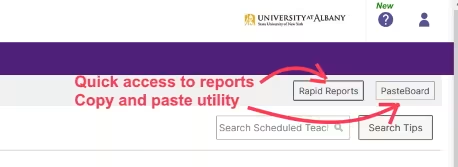
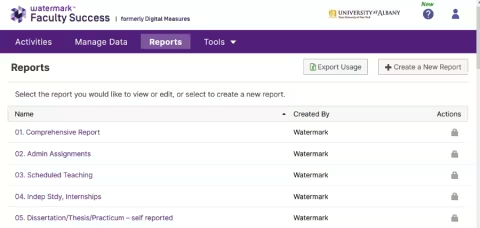
Select Rapid Reports to generate a report of the complete range of activity data or select sections.
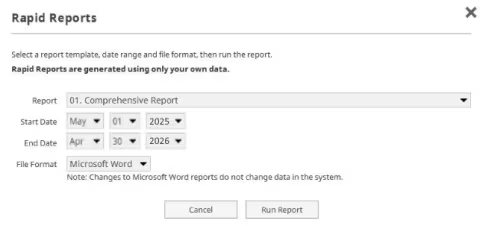
The "Report" field down arrow on the right lists the current reports in alphabetical order. (You may see different reports available.)
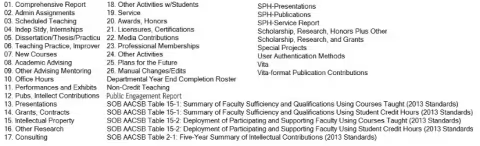
The default report is "01. Comprehensive Report", which will produce a report of all activities occurring within or overlapping the start and end dates.
Enter May 1, 2025 and April 30, 2026 for the Start and End dates that correspond to the standard report period. Any dates are possible, and the dates will be stored for future sessions.
Select the file format. The default file format for stored reports is Word but PDF and HTML are also available.
Clicking Run Report will produce a report that may be opened or saved first.
>Select PasteBoard on the top left of the screen to open a clipboard box on the bottom right of the display.
The PasteBoard is a time saving utility. "Copy-and-paste text here from another document, then drag-and-drop or copy-and -paste it into data fields. Resize the PasteBoard or move it to another position on the screen as needed." This area accepts between 200 and 300 lines of Word text, depending on margins. The pasteboard text contents will remain available until deleted; even through logoff and logon. The PastBoard may be closed with the X or by toggle of the menu item "PasteBoard." The contents will remain until deleted. Sizing and moving the Pasteboard and its contents with a mouse works the way floating application windows work; using mouse hover and select techniques. (If PasteBoard fails to open be sure nothing is blocking the storage of cookies for the browser.)
Adding and Editing Activities Information
To open an activity form, click on its name in the menu. Existing activity records can be reviewed or edited by selecting them in the list of records which are listed in descending order by date. Create a new record by selecting "Add New Item." Note that activity forms accommodate the most anticipated fields, and sometimes fields may be left blank because the data are unnecessary for the department or college. The Faculty Activity Reports does not dictate what data is important to enter. Please consult the department or college for instructions on what is important to report.
Save Each Record
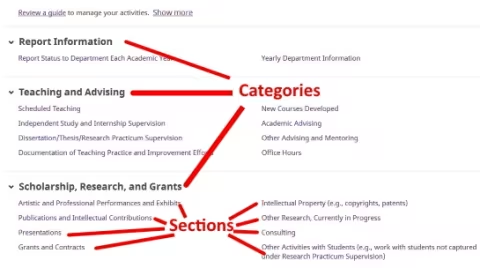
Activities Categories and Sections - Teaching and Advising
The Teaching and Advising category of activities includes the following sections:
- Scheduled Teaching
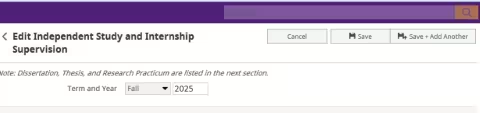
- Independent Study and Internship Supervision
- Dissertation/Thesis/Research Practicum Supervision
- Documentation of Teaching Practice and Improvement Efforts
- New Courses Developed
- Academic Advising
- Other Advising and Mentoring
- Office Hours
Information from the Registrar's Office is prepopulated into the activity records for teaching, independent study and dissertations, including data such as name, enrollment, and grades. This information should be reviewed and additional information may be added, such as pedagogical innovations, new teaching materials, or public engagement.
Note that the small, red capital "R" beside a field indicates the field is "Read Only." If any information is unexpected please contact the office of Institutional Research for assistance tracking down the sources of any data that is questionable.
Scheduled Teaching
At the bottom of each Scheduled Teaching form are three optional text boxes: Describe any pedagogical innovations, describe any new teaching material, and describe any activities that enhanced learning. The department or college may or may not use this information. Each box may be enlarged by using the mouse to drag the bottom right corner.
Grade Distributions and Student Instructional Rating Form (SIRF) Scores are pre-populated when available (i.e., once grades have been processed by the Registrar and once your students' responses to SIRF have been fully recorded).

The SIRF Scores consist of the "Mean Instructor SIRF Evaluation Score" and the "Mean Course SIRF Evaluation Score." These reflect students' responses to the SIRF questionnaire.
Please note that there are Secondary Instructors (and a handful of Primary Instructors in team-taught sections) without grading information. In those cases, the section will appear to provide credit for this course load, but no grade distribution will appear. (Those instructors might have SIRF Scores - which will be prepopulated.)
Independent Study and Internship Supervision
This section serves two types of study activities. Independent Studies or Internship are values selected at the top of the form. Information from the Registrar's Office will be used to pre-populate most of the form. Also, a field is provided for optional "Description/Comments" regarding the internships..
Dissertation/Thesis/Research Practicum Supervision - Self Reported
Each dissertation, thesis, or research practicum is reported in its own form. They must be added by faculty because they may span multiple terms and loading them from the Registrar's records creates duplicated. Start and end dates are crucial.
Documentation of Teaching Practice and Improvement Efforts
This section is optional but it may be relevant to the department or college. The choices for "Activity Type" include items that are also on other forms in the Faculty Activity Report.
When a "Start" and "End" date are requested, as they are here, you will often see the following: Note: for activities that are/were on one day, leave the start date blank and specify the end date. For activities that you started but have not yet presently completed, specify the start date and leave the end date blank. [Later, when finished, the end date can be added.]
You may notice the text box provided for the "Title or Description" says "30 words or less." In the future that and similar entries will be changed from "less" to "fewer".
New Courses Developed
If you developed a course and also taught it, the course will appear under "Scheduled Teaching." In this screen is where you would describe the process, purpose and duration of time spent developing the course
Academic Advising
For "Academic Year" there is a dropdown menu for Academic Year.
Enter the number of advisees for Bachelor's, Master's, Graduate Certificate, and Doctoral students in each box for each Academic Year..
Other Advising and Mentoring
The dropdown menu for "Activity Type" is something of a catch-all set of choices. "Guest Lecturing" would include work in University courses where you are not recorded as an instructor.
Office Hours
For each term, describe your office hour schedule in your own words, and then fill in the average number of office hours per week.
Category: Scholarship, Research and Grants
The second category of activities includes the following subcategories:
- Artistic and Professional Performances and Exhibits
- Publications and Intellectual Contributions
- Presentations
- Grants and Contracts
- Intellectual Property (e.g., copyrights, patents)
- Other Research, Currently in Progress
- Consulting
- Other Activities with Students (e.g., work with students not captured under Research Practicum Supervision).
Artistic and Professional Performances and Exhibits
There is a section to indicate someone who worked with you as a "Performer/Exhibitor/Lecturer" and an ADD button to open up additional sections. For each person you can use a drop-down menu to enter the name of an Albany colleague on the faculty or you can type in the person's first, middle and last names in the three boxes provided. If the person is a UAlbany student, please use the drop-down box to indicate if the student is an "Undergraduate" or "Graduate" student.
The drop-down choices for "Scope" are: International, National, Regional, State, and Local. Other menus ask whether the work was "Peer Reviewed/Refereed", "Invited" vs. "Accepted," and if it was by Audition/Commission Competition/Invitation.
A text box is provided to enter or paste a "Description" of the event, up to 50 words.
Publications and Intellectual Contributions
The University counts scholarly publications as any original works regardless of format that are published, refereed/peer reviewed, and publicly available (free or for-fee). Care should be taken to indicate those elements and include a date published
The "Current Status" drop-down includes "Published" and also includes "Not Accepted" and "Revising to Resubmit."
If a number of authors were involved, there is an ADD button to list each one, including a drop-down menu of UAlbany faculty and a place to name students. You can also re-arrange authors as first, second, third, and so forth. A record with multiple authors may only be modified by the author who created the record. To make a change such as removing your name from the list of authors in a record created by another author, contact the first author or the Institutional Research Office.
A question with a Yes/No drop-down menu, asks "Is this work publicly available?" (Necessary to Scholarly designation.
A Yes/No question, "Was this peer-reviewed/refereed" is also used to identify scholarly works.
There are several dates fields: Published Date is crucial to counting works as published. Also see Expected Date of Submission and dates for Submitted, Accepted, and Reprinted. As noted before, please keep in mind that this is a dynamic system allowing you to update your activity information at any time, and from any place, so those dates can (and should) be updated as the work progresses from expectation to reprint.
If you do not know the specific date of submission or publication, at least estimate the month and enter a year, so that the work will be captured in the appropriate reporting year.
Presentations
This asks for the same sort of information as the previous two subcategories. Please let us know if the drop-down menu for "Presentation Type" needs additional choices. For Presentations, the text box only allows up to 30 words for a Synopsis or Abstract.
If you do not know the specific date of presentation, at least estimate the month and enter a year, so that the work will be captured in the appropriate reporting year.
Grants and Contracts
Note the drop-down "Type" choices are "Grant", "Contract", or "Sponsored Research." The following definitions were supplied by the Research Foundation:
| Contract | An award established on the basis of a contract (agreement) through which a sponsor procures goods, services, or property from a contractor for use in carrying out the sponsor's business. A contract or agreement usually contains clearly defined performance requirements. |
| Grant | An award established on the basis of a grant award, which is an award of financial assistance that a sponsor makes to a grantee in order to support an activity the sponsor is interested in promoting. The grantee usually assumes only minimal obligations to the sponsor. |
| Sponsored Research | Sponsored research means research funded by external entities through a grant or contract that involves a specified statement of work. |
There is an ADD button to include those who worked with you, and for each of them as well as yourself you are asked to choose "Faculty Role" of "Principal," "Co-Principal," "Supporting," and "Other."
For the "Total (Direct + Indirect) Amount" for a grant, this is the total amount awarded over the course of the grant, not the amount for the given reporting period.

Intellectual Property (e.g., copyrights, patents)
For "Patent Nationality," the drop-down choices are either "United States" or "Patent Cooperation Treaty." If the latter, a textbox if provided for listing the nations involved.
An ADD button is provided to list joint holders of the copyright or patent.
If a patent has been licensed or assigned to someone else, boxes are also provided to indicate to whom the license or assignment was made.
Other Research, Currently in Progress
There is a box to enter the title and a large box for description. There is an ADD button for listing any collaborators.
The "Status" drop-down menu provides the choices "Planning", "On-Going", and "Writing Results".
The final drop-down box asks "Research Type" and has two choices "Scholarly" and "Non-Scholarly"--if that is in doubt, please use your own judgment on the choice.
Consulting
Nothing tricky here: title, organization involved, its location, start and end dates, and a text box for a description (up to 30 words).
Other Activities with Students (e.g., work with students not captured under Research Practicum Supervision.
For each term (including summer or winter terms, if applicable), the ADD button lets you include each student, and you are asked to provide the student's name, whether that student is undergraduate or graduate, the project title, and your role (not a drop-down menu).
Category: Professional, University, and Community Service
The third category of activities includes the following subcategories:
- Professional Service
- Departmental Service
- School/College Service
- University Level Service
- SUNY/State-Wide Service
- Community Board/Other Service
- New - External Service and Partnerships
Professional Service
As this screen's long list of entries suggests in the drop-down menu for "Position/Role," this subcategory is intended for service within your professional areas of expertise, largely among other professional colleagues: membership in scholarly society, reviewer of journal articles, etc. The subcategory Public Service below might be directly related to your research and academic talents but is more likely to occur largely among those who are not your academic peers. If in doubt, please use your best judgment.
Departmental Service and School/College Service
These two subcategories, as well as University Level Service and SUNY/State-Wide Service, were formerly a single subcategory "University Service." The "Position/Role" drop-down menu for the two subcategories is not a very long list, so it is quite possible you would prefer additional choices on the menu (thus avoiding having to choose "Other" and then explain that role in the next line on the screen.) if so, please let us know via the "Submit Your Feedback" button.
University Level Service
In addition to a fairly long list of titles, the "Position/Role" drop-down menu for "University Level" includes common types of activities in which you might have participated such as convocations, commencements, orientation programs, and awards ceremonies. "University Senate service" would include service not just on the Senate itself but also on one of its councils or committees. Please let us know via "Submit Your Feedback" if other choices should be on the menu (Fountain Day? Clean-Up Day?)
SUNY/State-Wide Service
If you have trouble find the appropriate choice on the "Position/Role" drop-down menu on this screen, it's the choices are exactly the same as those for the preceding "University Level Service." Obviously they shouldn't be and won't be next year. If your service includes work with the University Faculty Senate (SUNY Senate) or its state-wide committees, please list that for now under "University Senate service." Your suggestions for this drop-down menu will be especially appreciated.
Community Board/Other Service
The first item on this screen is a text box to enter "Organization, Committee, Club." As with most other "blanks" on the faculty activity report screens, you do not need to fill this in for volunteer and other service performed individually, unrelated to any named group.
Typical committee roles are among the "Position/Role" choices (secretary, treasurer, etc.) The list of roles here could be hugely expanded to the point where it would be easier to type in the information than to find and click on the role in the drop-down menu. Nevertheless, please send us feedback on any items you think are common enough to be helpful additions to the menu.
NEW - external Service and Partnerships
This service form is intended to document your community service activities that are related to your work as a University at Albany faculty member or that are related to your professional/academic expertise.
Category: Publicly Engaged Work/Activities
The fourth category of activities includes one subcategory.
This year, new questions and forms on the Faculty Activity Report give you the opportunity to report on your publicly engaged work and activities. Several sections now include a checkbox to designate a work activity or product as publicly engaged. Definitions on public engagement concepts are provided in the question mark buttons (You can also access them on the UAlbany Website using this link: Public Engagement Definitions.
Summaries of All Publicly Engaged Work
This form facilitates summary reporting of publicly engaged work. Such work can combine elements of research and publication, teaching, and service. To save time, please create groupings, wherever possible and desirable, of related publicly-engaged activities that you reported elsewhere in your activity report. (If you prefer, you could report on each individual item.) The selection of related activities is informal, based on your perception of what comprises your projects, programs, or other work clusters. Then, for each of these groupings, use one form to briefly describe it and identify its accomplishments, using menu items on types of work products, areas of outcome/impact, beneficiaries, partners, etc.
Definitions of public engagement concepts are available. To remind yourself of the activities you have tagged as publicly engaged, use Rapid Reports at the bottom of the screen to run a “Projects Report” which displays these activities and their identifying information.
Category: Honors, Awards, Certificates and Public Recognition
The fifth category of activities includes the following subcategories:
- Awards and Honors
- Licensures and Certifications
- Media Contributions
Awards and Honors
The drop-down menu "Category" probably should include choices "Other Fellowship" and "Other" (followed by a place to explain "Other"). The next menu "Awarded for" also might benefit from more choices. Your suggestions to "Submit Your Feedback" will be appreciated.
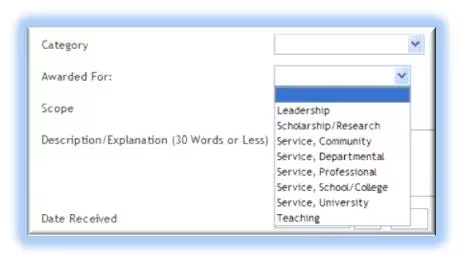
The menus for "Scope" in the previous screens included the choices International, National, Regional, State, and Local. This menu still has those choices but also includes choices to indicate if the award or honors "Scope" was "University" or "School/College" or "Department."
Licensures and Certifications
The only structure difference in this screen is that the dates requested are for "Date Obtained" and "Expiration Date".
Media Contributions
The "Media Type" menu choices are: TV, Radio, Newspaper, Magazine, Internet, and Other. Other than that, you are asked to enter the "Media Name", a "Description" of your contribution, and the "Date." If over several days, please indicate this in the description and just enter the month and year, or just the year if a series that crossed over more than one month.
Uncategorized
The following subcategories are uncategorized:
- Other Activities or Contributions
- Plans for the Future
Other Activities or Contributions
As the title suggests, this screen, which includes only a generous text box, a "Start Date" and an "End Date", is for those activities that you want to report but that just don't seem to fit anywhere else.
Plans for the Future
There is place to enter the date and a pull down text box for the description.
The date for this screen asks for the "Current Academic Year (for reporting purposes)" and provides a menu with choices from "2026-2027" all the way back to "1925-1926." The point is to enter the reporting year that you are making plans for the future, not the year you hope to complete those plans.
General Information
The entries in General Information are "(optional, but name and department information must be entered in Personal and Contact Information and Yearly Data, respectively)." One of the entries you can fill in is "Alternative Name You Publish Under (e.g., an anglicized name), if any", and there also is a text box allowing you to enter a "Biography" sketch.
Since the information collected is searchable, please note that there are also text boxes where you can list your "Teaching Interests" and your "Research Interests" which might provide you and your colleagues a database to find others with similar interests.
Other screens within general information are:
Administrative Data
- Permanent Data
- Yearly Data
Academic, Military and Professional Positions
Administrative Assignments (Formal)
Education
External Connections and Partnerships
Professional Memberships
Where you find information has been pre-populated on your behalf, please check it for accuracy. While you need not enter information in sections that are blank on these screens, eventually this would be necessary in order to generate a C.V. directly as a report.
Notation of Any Manual Changes to Pre-Populated Information
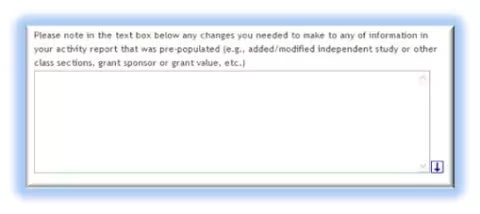
This screen consists simply of a large text box preceded by the self-explanatory note:
Run Ad Hoc Reports & Run Custom Reports
Although the menu at the left of all Watermark screens lists "Run Ad Hoc Reports" first, it may be helpful to begin with "Run Custom Reports," a function very similar to the "Rapid Reports" explained previously. Individual users can only generate reports concerning their own faculty activities. You can't see other faculty members' activity information---and they can't see yours.
Department chairs have authorization to see the information from faculty in their department, and deans have authorization to see the information from their school or college. The Provost's Office and the Office of Institutional Research, Planning and Effectiveness can run reports for the activities of all UAlbany faculty (for example, "All faculty awards and honors received during the 2013-2014 academic year" or all of the "Research Interests" listed by the faculty.
Running Custom Reports
The menu for generating Custom Reports has five steps:
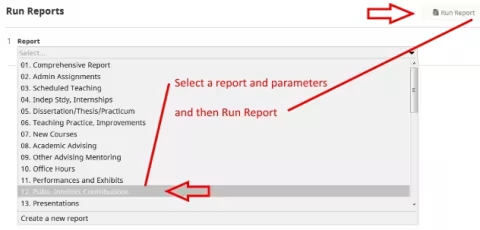
STEP 1: Select the report to run:
As noted on the drop-down menu below, the Custom Reports are formatted to provide the same 26 common reporting uses that appear on the Rapid Reports menu as well as a "Vita" menu choice. The default "01. Comprehensive Report" will generate Faculty Activity Reports for a group of faculty.
As noted on the drop-down menu below, the Custom Reports are formatted to provide the same 26 common reporting uses that appear on the Rapid Reports menu as well as a "Vita" menu choice. The default "01. Comprehensive Report" will generate Faculty Activity Reports for a group of faculty.
STEP 2: Select the date range to use: For annual Faculty Activity Reports, the dates should be May 1st through the following April 30th.
STEP 3; Select whom to include: As the following menu choices indicate, the person can select whole departments, one or several individuals, or an entire school or college. Whatever choices are made, the user naturally will receive report information only for those individuals and units for which he or she is authorized
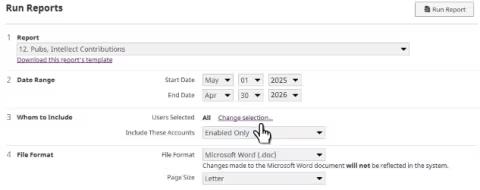
STEP 4: Select file format: Same as for Rapid Reports, the choices are MS Word, Adobe PDF, or HTML.
STEP 5: Select paper size: The default is "Letter" (Landscape); the other choice is "A4" (Landscape to fit into a C4 envelope, though Letter Landscape also will fit.)
"STEP 6", although not numbered, is to then click the "BUILD REPORT" button:
After a few to somewhat more than a few seconds, depending on the number faculty selected for inclusion, the report will have been built and you will be asked whether you want to open it or save it to a file.
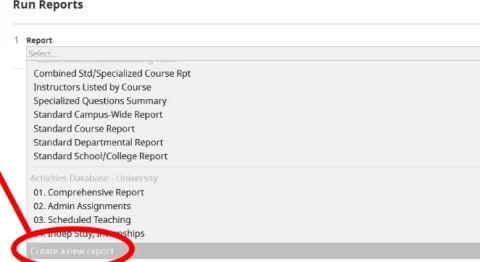
Create a new report was formerly Ad Hoc Reports. The same functionality is now within the Run Reports menu, and it is labeled Create a new report.
The reports that are created ad hoc can include only the fields that are needed, and comma separated value output can be selected (as well as XML).
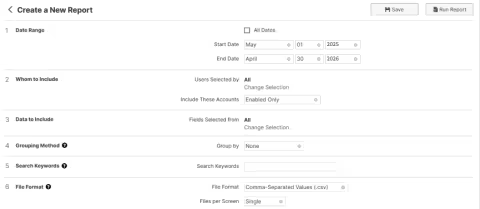
The improved layout and functionality of FAR permits the report to be saved. In the image below, see the buttons at the top right.
There are EIGHT numbered steps to generating an Ad Hoc report.
Step 1: Report: Select Create a new report" from the Run Reports menu. The help fields do not appear at this point, but step 2 reveals the entire process.
Step 2: Instrument: Once "Activities Database—University” is selected all eight fields become visible on the display to assist in the creation of a custom report.
Step 3: Date range: May 1st to April 30th is the default reporting year
Step 4: Whom to include: Choose from the list, or use the default "All" selection. Enabled accounts only is the default since disabled accounts would include retirees.
Step 5: Data to include: To select fields, use Change selection, and the check boxes will facilitate customization of the report.
Step 6: Grouping method: Select grouping such as Department; this will group college personnel within their department, for example. (Depends on access rights)
Step 7: Search keywords: Specify text you want within the selected fields. Quotes keep words together, AND, OR & NOT are useful, * is a wildcard for partial words.
Step 8: File Format: The CSV format facilitates using Excel. "Files per screen" allows a choice between one output file, and multiples; using an example -(multiples allow one row per author vs. one per publication).
One the report is ready, select SAVE at the top, and name the report for future use.
Or, merely choose Run Report. Then choose to save to your data folder or open the report.
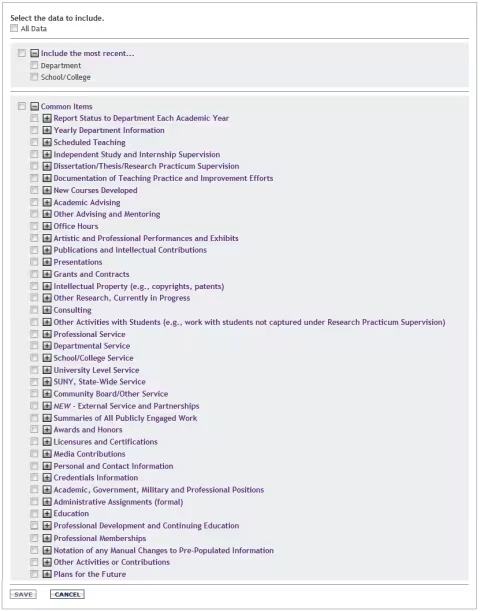
e "Common Items" refers to the categories common to all users. There are additional data items for faculty in the College of Integrated Health Sciences. Clicking the plus sign opens a list of all the categories, each of which also has a plus sign for its subcategories, etc. (Click on the minus closes up the list that was opened.) Clicking on a box to the left of each entry indicates you want the item included in the report, including any subcategories of the item you clicked.
In the example below, the faculty member only wanted a report on his or her "Plans for the Future." Note that if the faculty member did not need the report to include the "Description" of the plans but just the reporting years in which he or she had at least one plan, the user would not have checked "Plans for the Future" but only the first subcategory "Current Academic Year (for Reporting Purposes)".
Hint: Do not select fields for printing in which you have not filled in data; this will remove the heading for those fields from your report, "uncluttering" your report. For example, if you consistently have not filled in the abstract field for your publications, do not select the publications abstract field for printing..
Step 4: "Select how the data should be organized"
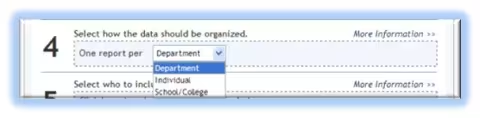
Although the drop-down menu suggests you can generate reports for another individual or a whole department, college or school, individual users effectively only have one option, as even if you choose "Department" or "School/College" an individual faculty member only has access to information concerning him or herself. The department chair could select her or his department (but no other department) or could select one or more, or all individual faculty, but only from his/her department. Similarly, the dean of a school or college could select the entire school or college or have the results organized by department or by faculty in that school or college (all of them or selected individuals, which brings us to Step 5.)
Step 5: "Select whom to include" Same as with Custom Reports, the person can select whole departments, one or several individuals, or an entire school or college. Whatever choices are made, the user naturally will receive report information only for those individuals and units for which he or she is authorized.
Step 6: "Select the file format"
The drop-down menu lets you choose from the following:
- Microsoft Word
- Adobe PDF
- HTML
- Raw Data, Comma Delimited (= CSV, Comma-separated variables)
- XML
Step 7: "Select the orientation and page size"
The drop-down choices are: Portrait, Letter; Landscape, Letter; Portrait, Legal; Landscape, Legal; Portrait, A4; and Landscape, A4. "A4" sized paper fits into 9X12.75 inches C4 envelopes (but of course so do 8.5X11 inch pages). For Steps 6 and 7, most users will probably choose Microsoft Word and Landscape, Letter.
"CONTINUE"
When finished with Steps 1-7, clicking "CONTINUE" brings you to a screen showing the print choices you made (and allowing you to change them).
If the date range, items to be included, etc., all look correct, click "BUILD REPORT" to have the report generated.
"BUILD REPORT"
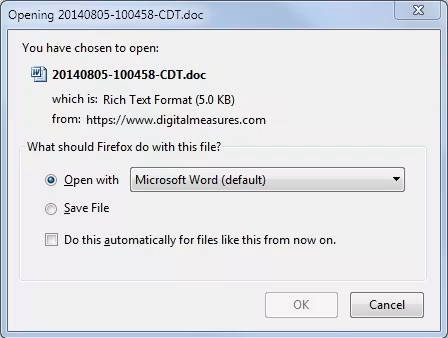
The first thing you will see after clicking "BUILD REPORT" is a Watermark screen with a note "Please wait." The wait is only a few seconds even for a large report, and then the following "File Download" box will appear on your screen.
Choosing "Save" gives you the opportunity to change the folder or directory to which the file will be saved and also a chance to change the file name. The computer-generated file name only reflects the year, month, day, hour [military time], minute and second--in Central Daylight Savings Time--that the report was produced and may be a source of confusion if you plan to save several reports.
Contact Our Help Desk
Your name and email address appear on the screen and will be sent to the recipient of your feedback unless you choose instead "I want to remain anonymous." While the latter choice might be appropriate in some instances, choosing "anonymous" means we cannot respond to you specifically (though we of course shall read your note and attempt to address any issues raised).
The "Feedback" box to enter your comments, complaints and suggestions appears to be only seven lines long but when you reach the bottom of the box more space opens up.
Watermark will forward your request to Larry Levine. If you contact the UAlbany Help Desk outside of the Watermark system, they will either directly address your problem/issue or forward your information on to Larry Levine.
After that, just click "Send" and, if you didn't send the message anonymously, we shall do our best to get back to you within one working day.